Tag Archives: Security

Obfuscating IP Addresses as Hostnames, (Tue, Aug 25th)

This post was originally published on this site

It is pretty obvious that hostnames can replace IP addresses. Pretty much any software accepting an IP address will also accept a hostname as an argument. Last week, I wrote about scans for the cloud metadata service listening at 169.254.169.254. These scans attempted to exploit Server Side Request Forgery (SSRF) vulnerability. One way to prevent these types of exploits is to filter requests that contain the string "169.254.169.254" or to add this IP to a blocklist of URLs that should not be accessed.

But as is almost always the case, blocklists are not the solution you are looking for.

In response to last week's diary, Sean wrote that they saw attackers use hostnames instead of IP addresses. In particular:

  • 169.254.169.254.nip.io
  • 169-254-169-254.sslip.io
  • test.169.254.169.254.nip.io (or other prefixes instead of test)
  • make-1.1.1.1-rebind-169.254.169.254-rr.1u.ms

The last one, as Sean pointed out, is likely linked to the 1u.ms tool. This tool allows attackers to define hostnames "on the fly". It offers numerous options. For example, you can configure the IP address to change after a certain number of lookups or after a certain time. IP addresses can use various encoding/obfuscating formats. The tool can also be configured with a custom domain, but 1u.ms is ready to go.

1u.ms maintains public logs for all requests sent to it, so you can check if it was used against one of your systems. The last 100 requests can be found at http://1u.ms/last and the

Similar hostnames can likely be configured with many dynamic hosting services. If you do retain DNS logs (you should!!), Check whether any resolution resulted in IPs such as 169.254.169.254.

—
Johannes B. Ullrich, Ph.D. , Dean of Research, SANS.edu
Twitter|

(c) SANS Internet Storm Center. https://isc.sans.edu Creative Commons Attribution-Noncommercial 3.0 United States License.
DOUBLECUP's PNG Payload, (Mon, Aug 24th)

This post was originally published on this site

New malware that uses steganography always gets my attention, but I was disappointed when I looked at the latest DOUBLECUP write-up. It doesn't use real steganography:

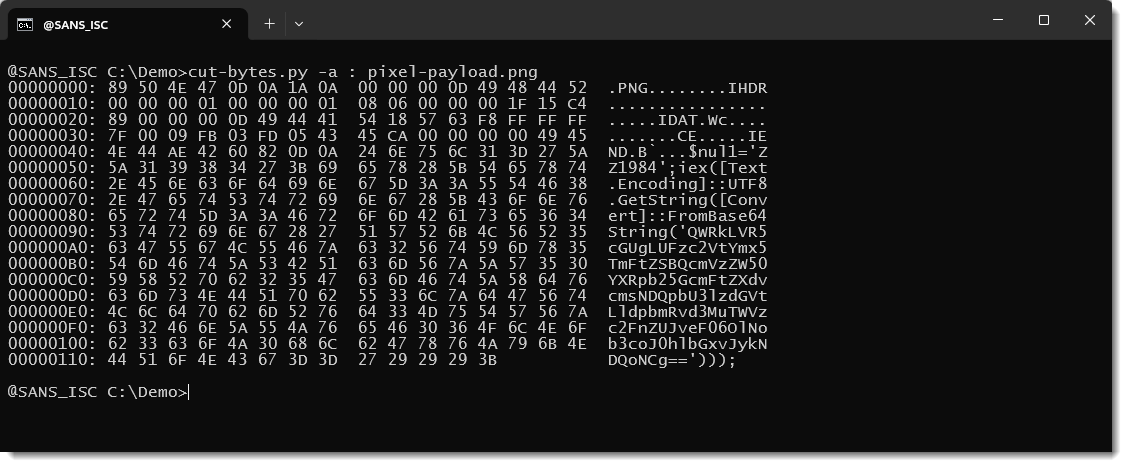
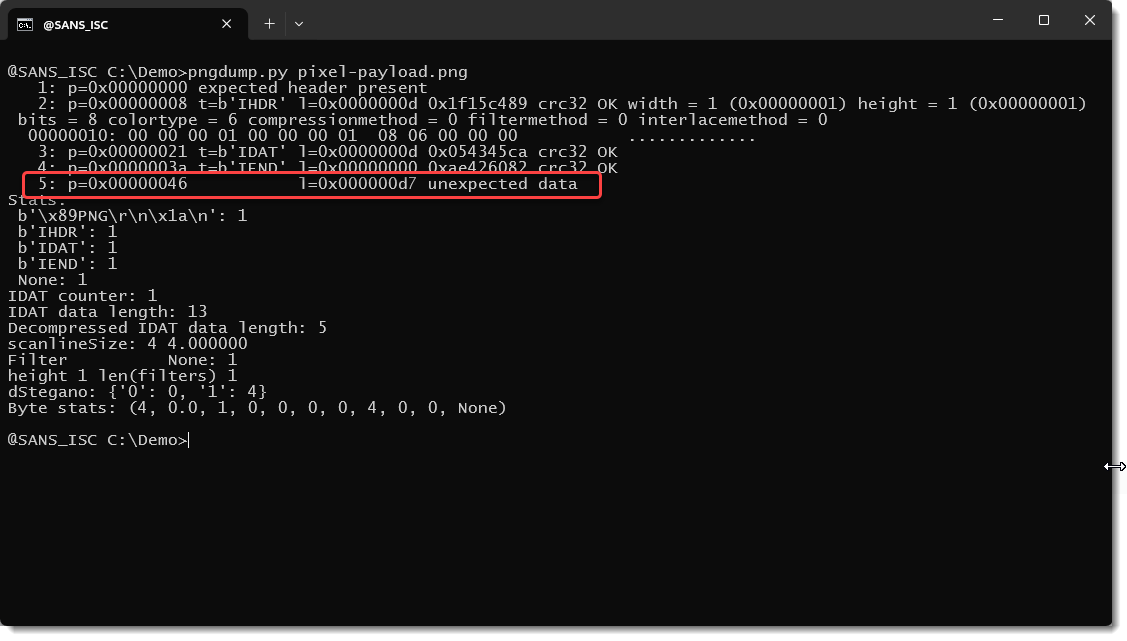
You can see the PowerShell payload as cleartext: it has not been encoded into the pixels of the image.

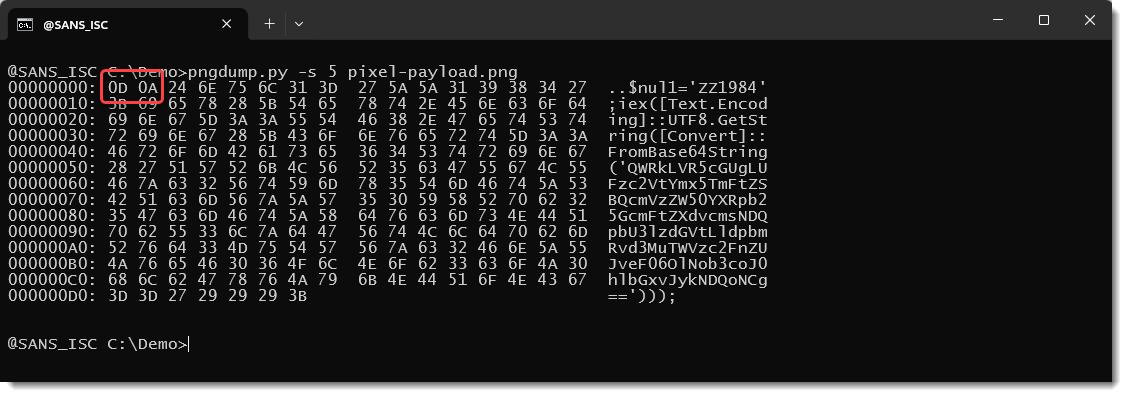
It's even not embedded in the image (like inside the metadata), it's just appended after the PNG file:

Yet there is a clever little trick:

The PowerShell script starts with 0x0D 0x0A, Carriage-Return + Newline: that terminates a line of text in Windows.

That makes that you don't need a custom payload extractor, you can just use the FINDSTR command (Windows' grep) with a unique identifier to extract the script:

And then pipe it into the PowerShell interpreter.


Didier Stevens
Senior handler
blog.DidierStevens.com

(c) SANS Internet Storm Center. https://isc.sans.edu Creative Commons Attribution-Noncommercial 3.0 United States License.
Using Microsoft Graph and Powershell to Mine for Information – Stale Accounts and Licenses, (Thu, Aug 20th)

This post was originally published on this site

Microsoft Graph is a newer API that is meant to replace several others.  OK, it's at version 2.3.9, so it's not all that new, but it's new enough that lots of folks (and commercial tools) aren't using it yet.   It allows you to Get and Set info from/to M365, Entra Users and Entra managed machines for starters.  Let's dig in!

Simple Scans for Cloud Metadata Service, (Wed, Aug 19th)

This post was originally published on this site

Cloud providers typically expose a REST API at 169.254.169.254 that allows code running on virtual machines to retrieve machine-specific data. Some of the data is more or less harmless, such as the region the machine is running in or its MAC and IP addresses. However, the service may also be used to retrieve credentials for IAM roles and service account tokens.

Apple Screen Sharing Security, (Mon, Aug 17th)

This post was originally published on this site

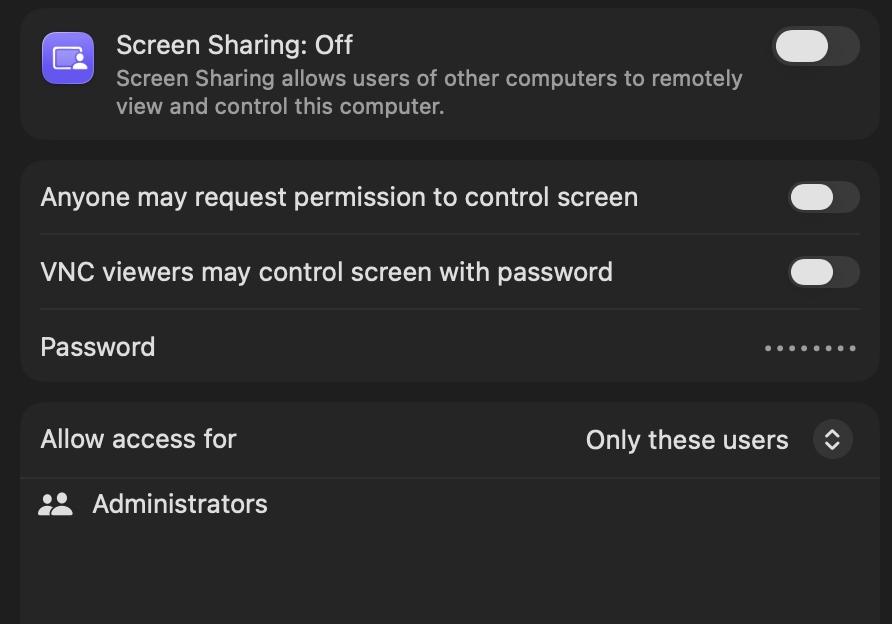
About 20 years ago, with macOS 10.5 (Leopard), Apple introduced screen sharing. Apple did not invent a new protocol for screen sharing. Instead, it used the established VNC protocol. VNC is a pretty simple, unencrypted protocol using TCP port 5900. Historically, the protocol used a simple global password for authentication. Apple adapted the protocol for its own use, but overall, left the VNC protocol itself alone.

A couple of weeks ago, two severe vulnerabilities exposed issues Apple introduced when it bolted on its own modifications to VNC. Currently, these vulnerabilities are being exploited, and a system with screen sharing exposed should be considered compromised. But here are some tips to improve screen sharing security.

One weakness exposed by these recent vulnerabilities is Apple's support for both "regular" VNC authentication and authentication via Apple's own macOS authentication system.  

Apple does allow old-fashioned VNC authentication by defining a VNC password. If this authentication scheme is used, a VNC client is prompted only for a password, not a username. The client may then ask for permission to use the screen, or they will be presented with an OS login prompt. This can be useful if you are trying to provide remote support to a logged-in user. But it does provide access to the system without any strong authentication. Access should still be secured by local user credentials, but the process already runs with elevated privileges to allow access for any user who logs in. This contributed to a recent vulnerability.

Next, you can restrict which users can remotely access the system. This should be restricted to allow only users who need remote access to connect.

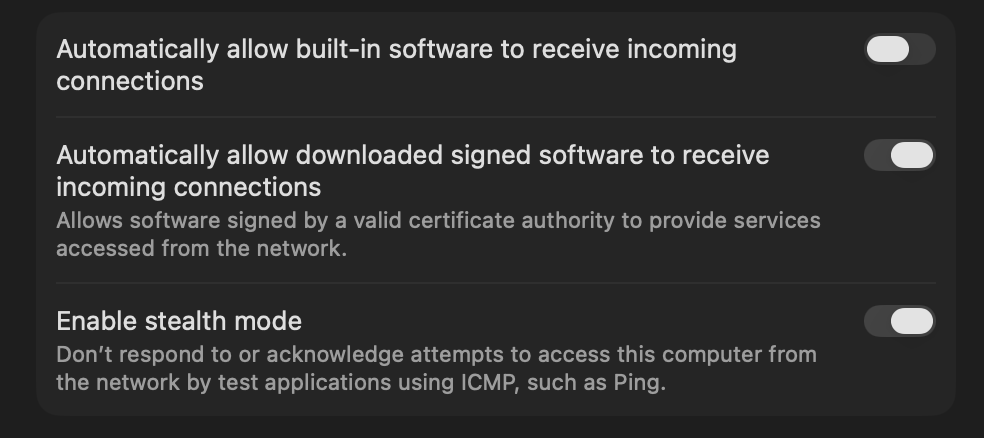
Access to screen sharing can also be controlled via macOS's built-in firewall. But the settings are not always clear. Just enabling the firewall is not sufficient.

If "Automatically allow built-in software" is enabled, the firewall will allow access to screen sharing. The same is true for "Automatically allow downloaded signed software". Even if "stealth mode" is enabled, screen sharing is still available. You may also select "Block all incoming connections", which will block everything, even applications you approved in the past.

Here are a few command-line tips to secure the system (this is for macOS 26; prior versions use slightly different syntax)

# use this to check the current firewall state
# /usr/libexec/ApplicationFirewall/socketfilterfw --getglobalstate
# turn firewall on
sudo /usr/libexec/ApplicationFirewall/socketfilterfw --setglobalstate on
# turn stealth mode on to not respond to pings
sudo /usr/libexec/ApplicationFirewall/socketfilterfw --setstealthmode on
# do not allow signed binaries
sudo /usr/libexec/ApplicationFirewall/socketfilterfw --setallowsigned off
# disable filesharing
sudo launchctl disable system/com.apple.smbd
# disable screensharing
sudo launchctl disable system/com.apple.screensharing

A script like this is handy if you need to switch from your internal network to a public one. VNC access should always happen via a VPN. SSH forwarding works well with VNC. Other solutions, like Tailscale, are easy to use if you need VNC for remote support.

—
Johannes B. Ullrich, Ph.D. , Dean of Research, SANS.edu
Twitter|

(c) SANS Internet Storm Center. https://isc.sans.edu Creative Commons Attribution-Noncommercial 3.0 United States License.

Using Gemma4 with Ollama – Testing File Hash Analysis and Recommendations with AI, (Wed, Aug 12th)

This post was originally published on this site

In the past few weeks, I have been using Gemma4 as a Large Language Model (LLM) to see how useful it can be to analyze some of the malware hashes uploaded to the DShield sensor over the past 30 days and figure out how its recommendation can be considered useful about the activity my DShield sensor is collecting and tracking. The model I use for this testing is gemma4:e4b [2] using two sites to compare the data against VirusTotal and CyberGordon.