#StopRansomware: Royal Ransomware

This post was originally published on this site

SUMMARY

Note: This joint Cybersecurity Advisory (CSA) is part of an ongoing #StopRansomware effort to publish advisories for network defenders that detail various ransomware variants and ransomware threat actors. These #StopRansomware advisories include recently and historically observed tactics, techniques, and procedures (TTPs) and indicators of compromise (IOCs) to help organizations protect against ransomware. Visit stopransomware.gov to see all #StopRansomware advisories and to learn more about other ransomware threats and no-cost resources.

Actions to take today to mitigate cyber threats from ransomware:

The Federal Bureau of Investigation (FBI) and the Cybersecurity and Infrastructure Security Agency (CISA) are releasing this joint CSA to disseminate known Royal ransomware IOCs and TTPs identified through FBI threat response activities as recently as January 2023.

Since approximately September 2022, cyber criminals have compromised U.S. and international organizations with a Royal ransomware variant. FBI and CISA believe this variant, which uses its own custom-made file encryption program, evolved from earlier iterations that used “Zeon” as a loader. After gaining access to victims’ networks, Royal actors disable antivirus software and exfiltrate large amounts of data before ultimately deploying the ransomware and encrypting the systems. Royal actors have made ransom demands ranging from approximately $1 million to $11 million USD in Bitcoin. In observed incidents, Royal actors do not include ransom amounts and payment instructions as part of the initial ransom note. Instead, the note, which appears after encryption, requires victims to directly interact with the threat actor via a .onion URL (reachable through the Tor browser). Royal actors have targeted numerous critical infrastructure sectors including, but not limited to, Manufacturing, Communications, Healthcare and Public Healthcare (HPH), and Education.

FBI and CISA encourage organizations to implement the recommendations in the Mitigations section of this CSA to reduce the likelihood and impact of ransomware incidents.

Download the PDF version of this report:

For a downloadable copy of IOCs, see

AA23-061A STIX XML
(XML, 115.20 KB
)

TECHNICAL DETAILS

Note: This advisory uses the MITRE ATT&CK® for Enterprise framework, version 12. See MITRE ATT&CK for Enterprise for all referenced tactics and techniques.

Royal ransomware uses a unique partial encryption approach that allows the threat actor to choose a specific percentage of data in a file to encrypt. This approach allows the actor to lower the encryption percentage for larger files, which helps evade detection.[1] In addition to encrypting files, Royal actors also engage in double extortion tactics in which they threaten to publicly release the encrypted data if the victim does not pay the ransom.

Initial Access

Royal actors gain initial access to victim networks in a number of ways including: 

  • Phishing. According to third-party reporting, Royal actors most commonly (in 66.7% of incidents) gain initial access to victim networks via successful phishing emails [T1566].
    • According to open-source reporting, victims have unknowingly installed malware that delivers Royal ransomware after receiving phishing emails containing malicious PDF documents [T1566.001], and malvertising [T1566.002].[2]
  • Remote Desktop Protocol (RDP). The second most common vector Royal actors use (in 13.3% of incidents) for initial access is RDP compromise.  
  • Public-facing applications. FBI has also observed Royal actors gain initial access through exploiting public-facing applications [T1190]. 
  • Brokers. Reports from trusted third-party sources indicate that Royal actors may leverage brokers to gain initial access and source traffic by harvesting virtual private network (VPN) credentials from stealer logs. 
Command and Control

Once Royal actors gain access to the network, they communicate with command and control (C2) infrastructure and download multiple tools [T1105]. Legitimate Windows software is repurposed by Royal operators to strengthen their foothold in the victim’s network. Ransomware operators often use open-source projects to aid their intrusion activities; Royal operators have recently been observed using Chisel, a tunneling tool transported over HTTP and secured via SSH [T1572], to communicate with their C2 infrastructure. FBI has observed multiple Qakbot C2s used in Royal ransomware attacks, but has not yet determined if Royal ransomware exclusively uses Qakbot C2s.

Lateral Movement and Persistence

Royal actors often use RDP to move laterally across the network [T1021.001]. Microsoft Sysinternals tool PsExec has also been used to aid lateral movement. FBI has observed Royal actors using remote monitoring and management (RMM) software, such as AnyDesk, LogMeIn, and Atera, for persistence in the victim’s network [T1133]. In some instances, the actors moved laterally to the domain controller. In one confirmed case, the actors used a legitimate admin account to remotely log on to the domain controller [T1078]. Once on the domain controller, the threat actor deactivated antivirus protocols [T1562.001] by modifying Group Policy Objects [T1484.001].

Exfiltration

Royal actors exfiltrate data from victim networks by repurposing legitimate cyber pentesting tools, such as Cobalt Strike, and malware tools and derivatives, such as Ursnif/Gozi, for data aggregation and exfiltration. According to third-party reporting, Royal actors’ first hop in exfiltration and other operations is usually a U.S. IP address.

Note: In reference to Cobalt Strike and other tools mentioned above, a tool repository used by Royal was identified at IP: 94.232.41[.]105 in December 2022.

Encryption

Before starting the encryption process, Royal actors: 

  • Use Windows Restart Manager to determine whether targeted files are currently in use or blocked by other applications [T1486].[1
  • Use Windows Volume Shadow Copy service (vssadmin.exe) to delete shadow copies to prevent system recovery.[1]  

FBI has found numerous batch (.bat) files on impacted systems which are typically transferred as an encrypted 7zip file. Batch files create a new admin user [T1078.002], force a group policy update, set pertinent registry keys to auto-extract [T1119] and execute the ransomware, monitor the encryption process, and delete files upon completion—including Application, System, and Security event logs [T1070.001].

Malicious files have been found in victim networks in the following directories:

  • C:Temp  
  • C:UsersAppDataRoaming  
  • C:Users 
  • C:ProgramData
Indicators of Compromise (IOC)

See table 1 and 2 for Royal ransomware IOCs that FBI obtained during threat response activities as of January 2023. Note: Some of the observed IP addresses are several months old. FBI and CISA recommend vetting or investigating these IP addresses prior to taking forward-looking action, such as blocking.

Table 1: Royal Ransomware Associated Files, Hashes, and IP addresses as of January 2023

IOC

Description

.royal

Encrypted file extension

README.TXT

Ransom note

Malicious IP

Last Activity

102.157.44[.]105

November 2022

105.158.118[.]241

November 2022

105.69.155[.]85

November 2022

113.169.187[.]159

November 2022

134.35.9[.]209

November 2022

139.195.43[.]166

November 2022

139.60.161[.]213

November 2022

148.213.109[.]165

November 2022

163.182.177[.]80

November 2022

181.141.3[.]126

November 2022

181.164.194[.]228

November 2022

185.143.223[.]69

November 2022

186.64.67[.]6

November 2022

186.86.212[.]138

November 2022

190.193.180[.]228

November 2022

196.70.77[.]11

November 2022

197.11.134[.]255

November 2022

197.158.89[.]85

November 2022

197.204.247[.]7

November 2022

197.207.181[.]147

November 2022

197.207.218[.]27

November 2022

197.94.67[.]207

November 2022

23.111.114[.]52

November 2022

41.100.55[.]97

November 2022

41.107.77[.]67

November 2022

41.109.11[.]80

November 2022

41.251.121[.]35

November 2022

41.97.65[.]51

November 2022

42.189.12[.]36

November 2022

45.227.251[.]167

November 2022

5.44.42[.]20

November 2022

61.166.221[.]46

November 2022

68.83.169[.]91

November 2022

81.184.181[.]215

November 2022

82.12.196[.]197

November 2022

98.143.70[.]147

November 2022

140.82.48[.]158

December 2022

147.135.36[.]162

December 2022

147.135.11[.]223

December 2022

152.89.247[.]50

December 2022

172.64.80[.]1

December 2022

179.43.167[.]10

December 2022

185.7.214[.]218

December 2022

193.149.176[.]157

December 2022

193.235.146[.]104

December 2022

209.141.36[.]116

December 2022

45.61.136[.]47

December 2022

45.8.158[.]104

December 2022

5.181.234[.]58

December 2022

5.188.86[.]195

December 2022

77.73.133[.]84

December 2022

89.108.65[.]136

December 2022

94.232.41[.]105

December 2022

47.87.229[.]39

January 2023

Malicious Domain

Last Observed

ciborkumari[.]xyz

October 2022

sombrat[.]com

October 2022

gororama[.]com

November 2022

softeruplive[.]com

November 2022

altocloudzone[.]live

December 2022

ciborkumari[.]xyz

December 2022

myappearinc[.]com

December 2022

parkerpublic[.]com

December 2022

pastebin.mozilla[.]org/Z54Vudf9/raw

December 2022

tumbleproperty[.]com

December 2022

myappearinc[.]com/acquire/draft/c7lh0s5jv

January 2023

Table 2: Tools used by Royal operators

Tool

SHA256

AV tamper

8A983042278BC5897DBCDD54D1D7E3143F8B7EAD553B5A4713E30DEFFDA16375

TCP/UDP Tunnel over HTTP (Chisel)

8a99353662ccae117d2bb22efd8c43d7169060450be413af763e8ad7522d2451

Ursnif/Gozi

be030e685536eb38ba1fec1c90e90a4165f6641c8dc39291db1d23f4ee9fa0b1

Exfil

B8C4AEC31C134ADBDBE8AAD65D2BCB21CFE62D299696A23ADD9AA1DE082C6E20

Remote Access (AnyDesk)

4a9dde3979c2343c024c6eeeddff7639be301826dd637c006074e04a1e4e9fe7

PowerShell Toolkit Downloader

4cd00234b18e04dcd745cc81bb928c8451f6601affb5fa45f20bb11bfb5383ce

PsExec (Microsoft Sysinternals)

08c6e20b1785d4ec4e3f9956931d992377963580b4b2c6579fd9930e08882b1c

Keep Host Unlocked (Don’t Sleep)

f8cff7082a936912baf2124d42ed82403c75c87cb160553a7df862f8d81809ee

Ransomware Executable

d47d4b52e75e8cf3b11ea171163a66c06d1792227c1cf7ca49d7df60804a1681

Windows Command Line (NirCmd)

216047C048BF1DCBF031CF24BD5E0F263994A5DF60B23089E393033D17257CB5

System Management (NSudo)

19896A23D7B054625C2F6B1EE1551A0DA68AD25CDDBB24510A3B74578418E618

Batch Scripts


Filename

Hash Value

2.bat

585b05b290d241a249af93b1896a9474128da969

3.bat

41a79f83f8b00ac7a9dd06e1e225d64d95d29b1d

4.bat

a84ed0f3c46b01d66510ccc9b1fc1e07af005c60

8.bat

c96154690f60a8e1f2271242e458029014ffe30a

kl.bat

65dc04f3f75deb3b287cca3138d9d0ec36b8bea0

gp.bat

82f1f72f4b1bfd7cc8afbe6d170686b1066049bc7e5863b51aa15ccc5c841f58

r.bat

74d81ef0be02899a177d7ff6374d699b634c70275b3292dbc67e577b5f6a3f3c

runanddelete.bat

342B398647073159DFA8A7D36510171F731B760089A546E96FBB8A292791EFEE

MITRE ATT&CK TECHNIQUES

See table 3 for all referenced threat actor tactics and techniques included in this advisory.

Table 3: Royal Actors ATT&CK Techniques for Enterprise

Initial Access


Technique Title

ID

Use

Exploit Public Facing Application

T1190

The actors gain initial access through public-facing applications.

Phishing: Spear phishing Attachment

T1566.001

The actors gain initial access through malicious PDF attachments sent via email.

Phishing: Spearphishing Link

T1566.002

The actors gain initial access using malvertising links via emails and public-facing sites.

External Remote Services

T1133

The actors gain initial access through a variety of RMM software.

Command and Control


Technique Title

ID

Use

Ingress Tool Transfer

T1105

The actors used C2 infrastructure to download multiple tools.

Protocol Tunneling

T1572

The actors used an encrypted SSH tunnel to communicate within C2 infrastructure.

                                                              Privilege Escalation


Technique Title

ID

Use

Valid Accounts: Domain Accounts

T1078.002

The actors used encrypted files to create new admin user accounts.

Defense Evasion


Technique Title

ID

Use

Impair Defenses: Disable or Modify Tools

T1562.001

The actors deactivated antivirus protocols.

Domain Policy Modification: Group Policy Modification

T1484.001

The actors modified Group Policy Objects to subvert antivirus protocols.

Indicator Removal: Clear Windows Event Logs

T1070.001

The actors deleted shadow files and system and security logs after exfiltration.

Remote Desktop Protocol

T1021.001

The actors used valid accounts to move laterally through the domain controller using RDP.

Automated Collection

T1119

The actors used registry keys to auto-extract and collect files.

                                                                         Impact  


Technique Title

ID

Use

Data Encrypted for Impact

T1486

The actors encrypted data to determine which files were being used or blocked by other applications.

MITIGATIONS

FBI and CISA recommend network defenders apply the following mitigations to limit potential adversarial use of common system and network discovery techniques and to reduce the risk of compromise by Royal ransomware. These mitigations follow CISA’s Cybersecurity Performance Goals (CPGs), which provide a minimum set of practices and protections that are informed by the most common and impactful threats, tactics, techniques, and procedures, and which yield goals that all organizations across critical infrastructure sectors should implement:

  • Implement a recovery plan to maintain and retain multiple copies of sensitive or proprietary data and servers [CPG 7.3] in a physically separate, segmented, and secure location (i.e., hard drive, storage device, the cloud).
  • Require all accounts with password logins (e.g., service account, admin accounts, and domain admin accounts) to comply with National Institute for Standards and Technology (NIST) standards for developing and managing password policies [CPG 3.4].
    • Use longer passwords consisting of at least 8 characters and no more than 64 characters in length [CPG 1.4].
    • Store passwords in hashed format using industry-recognized password managers.
    • Add password user “salts” to shared login credentials.
    • Avoid reusing passwords.
    • Implement multiple failed login attempt account lockouts [CPG 1.1].
    • Disable password hints.
    • Refrain from requiring password changes more frequently than once per year. Note: NIST guidance suggests favoring longer passwords instead of requiring regular and frequent password resets. Frequent password resets are more likely to result in users developing password patterns cyber criminals can easily decipher. 
    • Require administrator credentials to install software.
  • Require multifactor authentication [CPG 1.3] for all services to the extent possible, particularly for webmail, virtual private networks, and accounts that access critical systems. 
  • Keep all operating systems, software, and firmware up to date. Timely patching is one of the most efficient and cost-effective steps an organization can take to minimize its exposure to cybersecurity threats. 
  • Segment networks [CPG 8.1]. Network segmentation can help prevent the spread of ransomware by controlling traffic flows between—and access to—various subnetworks and by restricting adversary lateral movement. 
  • Identify, detect, and investigate abnormal activity and potential traversal of the indicated ransomware with a networking monitoring tool. To aid in detecting ransomware, implement a tool that logs and reports all network traffic [CPG 5.1], including lateral movement activity on a network. Endpoint detection and response (EDR) tools are useful for detecting lateral connections as they have insight into common and uncommon network connections for each host. 
  • Install, regularly update, and enable real time detection for antivirus software on all hosts.
  • Review domain controllers, servers, workstations, and active directories for new and/or unrecognized accounts.
  • Audit user accounts with administrative privileges and configure access controls according to the principle of least privilege [CPG 1.5].
  • Disable unused ports.
  • Consider adding an email banner to emails [CPG 8.3] received from outside your organization.
  • Implement time-based access for accounts set at the admin level and higher. For example, the Just-in-Time (JIT) access method provisions privileged access when needed and can support enforcement of the principle of least privilege (as well as the Zero Trust model). This is a process where a network-wide policy is set in place to automatically disable admin accounts at the Active Directory level when the account is not in direct need. Individual users may submit their requests through an automated process that grants them access to a specified system for a set timeframe when they need to support the completion of a certain task. 
  • Disable command-line and scripting activities and permissions. Privilege escalation and lateral movement often depend on software utilities running from the command line. If threat actors are not able to run these tools, they will have difficulty escalating privileges and/or moving laterally. 
  • Maintain offline backups of data, and regularly maintain backup and restoration [CPG 7.3]. By instituting this practice, the organization ensures they will not be severely interrupted, and/or only have irretrievable data. 
  • Ensure all backup data is encrypted, immutable (i.e., cannot be altered or deleted), and covers the entire organization’s data infrastructure [CPG 3.3].

RESOURCES

REPORTING

FBI is seeking any information that can be shared, to include boundary logs showing communication to and from foreign IP addresses, a sample ransom note, communications with Royal actors, Bitcoin wallet information, decryptor files, and/or a benign sample of an encrypted file.

Additional details requested include: a targeted company Point of Contact, status and scope of infection, estimated loss, operational impact, transaction IDs, date of infection, date detected, initial attack vector, host and network based indicators.

FBI and CISA do not encourage paying ransom as payment does not guarantee victim files will be recovered. Furthermore, payment may also embolden adversaries to target additional organizations, encourage other criminal actors to engage in the distribution of ransomware, and/or fund illicit activities. Regardless of whether you or your organization have decided to pay the ransom, FBI and CISA urge you to promptly report ransomware incidents to a local FBI Field Office, or CISA at https://www.cisa.gov/report.

DISCLAIMER

The information in this report is being provided “as is” for informational purposes only. CISA and FBI do not endorse any commercial product or service, including any subjects of analysis. Any reference to specific commercial products, processes, or services by service mark, trademark, manufacturer, or otherwise, does not constitute or imply endorsement, recommendation, or favoring by CISA or the FBI.

REFERENCES

[1] Royal Rumble: Analysis of Royal Ransomware (cybereason.com)
[2] DEV-0569 finds new ways to deliver Royal ransomware, various payloads – Microsoft Security Blog
[3] 2023-01: ACSC Ransomware Profile – Royal | Cyber.gov.au

ACKNOWLEDGEMENTS

Recorded Future, Coveware, Digital Asset Redemption, Q6, and RedSense contributed to this CSA.

Please share your thoughts. We recently updated our anonymous Product Feedback Survey and we’d welcome your feedback.

PowerShell Extension for Visual Studio Code February 2023 Update

This post was originally published on this site

We are excited to announce that the February update to the PowerShell Extension for Visual Studio Code is now available on the extension marketplace.

In this update we rewrote all the symbol logic. Classes (and their properties and methods) are now proper symbols. We now have a single visitor that builds a cached dictionary of symbols for each file instead of a dozen similar-yet-different Abstract Symbol Tree (AST) PowerShell script visitors handling different parts of each symbol-related request. This was a massive simplification of the code that also leads to huge performance improvements across all the symbol related features.

Updates in the February Release

Note that these updates all shipped in our PowerShell Preview Extension for VS Code before shipping in our stable channel.

Some highlights of the February preview releases:

A number of performance improvements to the following:

For the full list of changes please refer to our changelog.

Getting Support and Giving Feedback

While we hope the new implementation provides a much better user experience, there are bound to be issues. Please let us know if you run into anything.

If you encounter any issues with the PowerShell Extension in Visual Studio Code or have feature requests, the best place to get support is through our GitHub repository.

Sydney Smith

PowerShell Team

The post PowerShell Extension for Visual Studio Code February 2023 Update appeared first on PowerShell Team.

ESXiArgs Ransomware Virtual Machine Recovery Guidance

This post was originally published on this site

Summary

The Cybersecurity and Infrastructure Security Agency (CISA) and the Federal Bureau of Investigation (FBI) are releasing this joint Cybersecurity Advisory (CSA) in response to the ongoing ransomware campaign, known as “ESXiArgs.” Malicious actors may be exploiting known vulnerabilities in VMware ESXi servers that are likely running unpatched and out-of-service or out-of-date versions of VMware ESXi software to gain access and deploy ransomware. The ESXiArgs ransomware encrypts configuration files on ESXi servers, potentially rendering virtual machines (VMs) unusable. 

CISA has released an ESXiArgs recovery script at github.com/cisagov/ESXiArgs-Recover. Organizations that have fallen victim to ESXiArgs ransomware can use this script to attempt to recover their files. This CSA provides guidance on how to use the script.
ESXiArgs actors have compromised over 3,800 servers globally. CISA and FBI encourage all organizations managing VMware ESXi servers to: 

  • Update servers to the latest version of VMware ESXi software
  • Harden ESXi hypervisors by disabling the Service Location Protocol (SLP) service, and 
  • Ensure the ESXi hypervisor is not exposed to the public internet. 

If malicious actors have compromised your organization with ESXiArgs ransomware, CISA and FBI recommend following the script and guidance provided in this CSA to attempt to recover access to your files.  

Download the PDF version of this report: 

Note: CISA and FBI will update this CSA as more information becomes available.

Technical Details

Open-source reporting indicates that malicious actors are exploiting known vulnerabilities in VMware ESXi software to gain access to servers and deploy ESXiArgs ransomware. The actors are likely targeting end-of-life ESXi servers or ESXi servers that do not have the available ESXi software patches applied.[1] 

ESXiArgs ransomware encrypts certain configuration files on ESXi servers, potentially rendering VMs unusable. Specifically, the ransomware encrypts configuration files associated with the VMs; it does not encrypt flat files. As a result, it is possible, in some cases, for victims to reconstruct the encrypted configuration files based on the unencrypted flat file. The recovery script documented below automates the process of recreating configuration files. The full list of file extensions encrypted by the malware is: vmdkvmxvmxfvmsdvmsnvswpvmssnvramvmem.

Recovery Guidance

CISA and FBI do not encourage paying the ransom as payment does not guarantee victim files will be recovered. Furthermore, payment may also embolden adversaries to target additional organizations, encourage other criminal actors to engage in the distribution of ransomware, and/or fund illicit activities. Regardless of whether you or your organization have decided to pay the ransom, CISA and FBI urge you to promptly report ransomware incidents to a local FBI Field Office, or to CISA at cisa.gov/report

CISA is providing these steps to enable organizations to attempt recovery of their VMs. CISA’s GitHub ESXiArgs recovery script, which also outlines these steps, is available at github.com/cisagov/ESXiArgs-Recover. CISA is aware that some organizations have reported success in recovering files without paying ransoms. CISA’s script is based on findings published by third-party researchers.[2] 

Any organization seeking to use CISA’s ESXiArgs recovery script should carefully review the script to determine if it is appropriate for their environment before deploying it. This script does not seek to delete the encrypted configuration files, but instead seeks to create new configuration files that enable access to the VMs. While CISA works to ensure that scripts like this one are safe and effective, this script is delivered without warranty, either implicit or explicit. Do not use this script without understanding how it may affect your system. CISA does not assume liability for damage caused by this script. Note: Organizations that run into problems with the script can create a GitHub issue at https://github.com/cisagov/ESXiArgs-Recover/issues; CISA will do our best to resolve concerns.

  1. Quarantine or take affected hosts offline to ensure that repeat infection does not occur.
  2. Download CISA’s recovery script and save it as /tmp/recover.sh.
    For example, with wgetwget -O /tmp/recover.sh https://raw.githubusercontent.com/cisagov/ESXiArgs-Recover/main/recover.sh.
  3. Give the script execute permissions: chmod +x /tmp/recover.sh
  4. Navigate to the folder of a VM you would like to recover and run ls to view the files.
    • Note: You may browse these folders by running ls /vmfs/volumes/datastore1. For instance, if the folder is called example, run cd /vmfs/volumes/datastore1/example.
  5. View files by running ls. Note the name of the VM (via naming convention: [name].vmdk).
  6. Run the recovery script with /tmp/recover.sh [name], where [name] is the name of the VM determined previously. 
    • If the VM is a thin format, run /tmp/recover.sh [name] thin.
    • If successful, the recovery script will output that it has successfully run. If unsuccessful, it may not be possible for the recovery script to recover your VMs; consider engaging external incident response help.
  7. If the script succeeded, re-register the VM.
    1. If the ESXi web interface is inaccessible, remove the ransom note and restore access via the following steps. (Note: Taking the steps below moves the ransom note to the file ransom.html. Consider archiving this file for future incident review.)
      • Run cd /usr/lib/vmware/hostd/docroot/ui/ && mv index.html ransom.html && mv index1.html index.html.
      • Run cd /usr/lib/vmware/hostd/docroot && mv index.html ransom.html && rm index.html && mv index1.html index.html.
      • Reboot the ESXi server (e.g., with the reboot command). After a few minutes, you should be able to navigate to the web interface.
      • In the ESXi web interface, navigate to the Virtual Machines page.
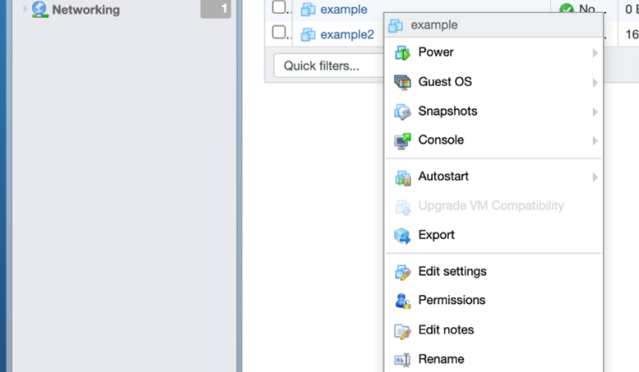
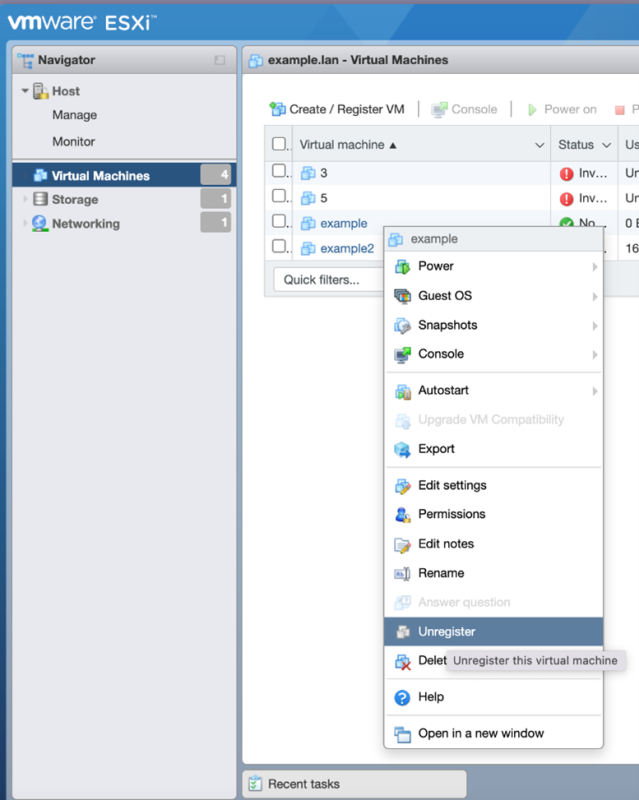
      • If the VM you restored already exists, right click on the VM and select Unregister (see figure 1).
Figure 1: Unregistering the virtual machine

Figure 1: Unregistering the virtual machine.

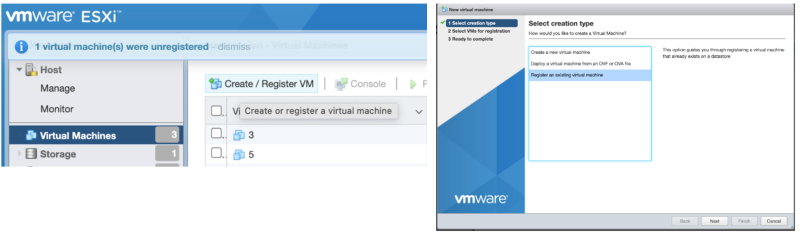
  • Select Create / Register VM (see figure 2).
  • Select Register an existing virtual machine (see figure 2).
Figure 2: Registering the virtual machine, selecting machine to register.

Figure 2: Registering the virtual machine, selecting machine to register.

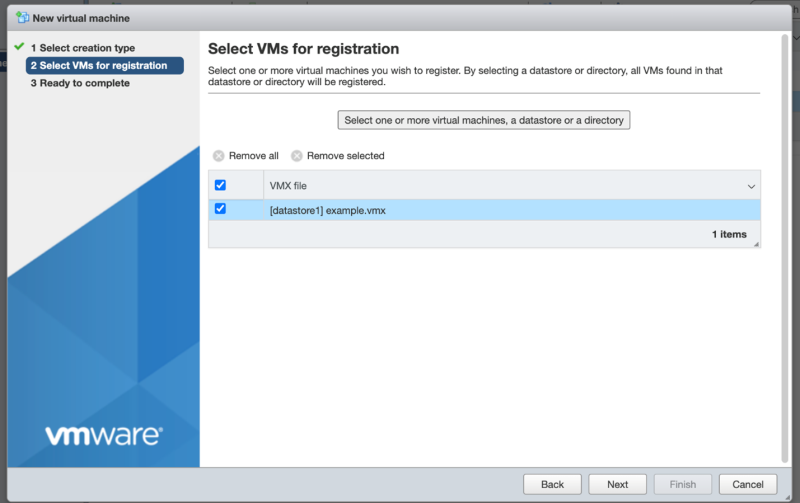
Click Select one or more virtual machines, a datastore or a directory to navigate to the folder of the VM you restored. Select the vmx file in the folder (see figure 3).

Figure 3: Registering the virtual machine, finalizing registration.

Figure 3: Registering the virtual machine, finalizing registration.

Select Next and Finish. You should now be able to use the VM as normal.

Figure 3: Registering the virtual machine, finalizing registration.

Select Next and Finish. You should now be able to use the VM as normal.

  1. Update servers to the latest software version, disable the Service Location Protocol (SLP) service, and ensure the ESXi hypervisor is not configured to be exposed to the public internet before putting systems back online. 

Additional Incident Response

The above script only serves as a method to recover essential services. Although CISA and FBI have not seen any evidence that the actors have established persistence, we recommend organizations take the following additional incident response actions after applying the script:

  1. Review network logging to and from ESXi hosts and the guest VMs for unusual scanning activity.
  2. Review traffic from network segments occupied by the ESXi hosts and guests. Consider restricting non-essential traffic to and from these segments.

If you detect activity from the above, implement your incident response plan. CISA and FBI urge you to promptly report ransomware incidents to a local FBI Field Office, or to CISA at cisa.gov/report.

Organizations should also collect and review artifacts, such as running processes/services, unusual authentications, and recent network connections.

See the joint CSA from the cybersecurity authorities of Australia, Canada, New Zealand, the United Kingdom, and the United States on Technical Approaches to Uncovering and Remediating Malicious Activity for additional guidance on hunting or investigating a network, and for common mistakes in incident handling. CISA also encourages government network administrators to see CISA’s Federal Government Cybersecurity Incident and Vulnerability Response Playbooks. Although tailored to federal civilian branch agencies, these playbooks provide operational procedures for planning and conducting cybersecurity incident and vulnerability response activities and detail steps for both incident and vulnerability response.  

Additional resources for recovering .vmdk files can be found on a third-party researcher’s website.[2]

Mitigations

Note: These mitigations align with the cross-sector Cybersecurity Performance Goals (CPGs) developed by CISA and the National Institute of Standards and Technology (NIST). The CPGs provide a minimum set of practices and protections that CISA and NIST recommend all organizations implement. CISA and NIST based the CPGs on existing cybersecurity frameworks and guidance to protect against the most common and impactful threats, tactics, techniques, and procedures. For more information on the CPGs, including additional recommended baseline protections, see cisa.gov/cpg.

CISA and FBI recommend all organizations: 

  • Temporarily remove connectivity for the associated ESXi server(s).
    • Upgrade your ESXi servers to the latest version of VMware ESXi software [CPG 5.1]. ESXi releases are cumulative, and the latest builds are documented in VMware’s article, Build numbers and versions of VMware ESXi/ESX.
    • Harden ESXi hypervisors by disabling the Service Location Protocol (SLP) service, which ESXiArgs may leverage. For more information on executing workarounds, see VMware’s guidance How to Disable/Enable the SLP Service on VMware ESXi
    • Ensure your ESXi hypervisor is not configured to be exposed to the public internet.

In addition, CISA and FBI recommend organizations apply the following recommendations to prepare for, mitigate/prevent, and respond to ransomware incidents.

Preparing for Ransomware

  • Maintain offline backups of data, and regularly test backup and restoration [CPG 7.3]. These practices safeguard an organization’s continuity of operations or at least minimize potential downtime from a ransomware incident and protect against data losses.
  • Ensure all backup data is encrypted, immutable (i.e., cannot be altered or deleted), and covers the entire organization’s data infrastructure.
  • Create, maintain, and exercise a basic cyber incident response plan and associated communications plan that includes response procedures for a ransomware incident [CPG 7.1, 7.2].

 Mitigating and Preventing Ransomware

  • Restrict Server Message Block (SMB) Protocol within the network to only access servers that are necessary and remove or disable outdated versions of SMB (i.e., SMB version 1). Threat actors use SMB to propagate malware across organizations.
  • Require phishing-resistant MFA for as many services as possible [CPG 1.3]—particularly for webmail, VPNs, accounts that access critical systems, and privileged accounts that manage backups.
  • Review the security posture of third-party vendors and those interconnected with your organization. Ensure all connections between third-party vendors and outside software or hardware are monitored and reviewed for suspicious activity.
  • Implement allow-listing policies for applications and remote access that only allow systems to execute known and permitted programs.
  • Open document readers in protected viewing modes to help prevent active content from running.
  • Implement user training program and phishing exercises to raise awareness among users about the risks of visiting suspicious websites, clicking on suspicious links, and opening suspicious attachments. Reinforce the appropriate user response to phishing and spearphishing emails.
  • Use strong passwords [CPG 1.4] and avoid reusing passwords for multiple accounts. See CISA Tip Choosing and Protecting Passwords and the NIST’s Special Publication 800-63B: Digital Identity Guidelines for more information.
  • Require administrator credentials to install software [CPG 1.5].
  • Audit user accounts with administrative or elevated privileges and configure access controls with least privilege in mind [CPG 1.5].
  • Install and regularly update antivirus and antimalware software on all hosts.
  • Consider adding an email banner to messages coming from outside your organizations.
  • Disable hyperlinks in received emails.
  • Consider participating in CISA’s no-cost Automated Indicator Sharing (AIS) program to receive real-time exchange of machine-readable cyber threat indicators and defensive measures. 

Responding to Ransomware Incidents

If a ransomware incident occurs at your organization:

  • Follow your organization’s Ransomware Response Checklist (see Preparing for Ransomware section).
  • Scan backups. If possible, scan backup data with an antivirus program to check that it is free of malware. This should be performed using an isolated, trusted system to avoid exposing backups to potential compromise.
  • Follow the notification requirements as outlined in your cyber incident response plan.
  • Report incidents to CISA at cisa.gov/report, FBI at a local FBI Field Office, or the U.S. Secret Service (USSS) at a USSS Field Office.
  • Apply incident response best practices found in the joint Cybersecurity Advisory, Technical Approaches to Uncovering and Remediating Malicious Activity, developed by CISA and the cybersecurity authorities of Australia, Canada, New Zealand, and the United Kingdom.

Note: CISA and FBI strongly discourage paying ransoms as doing so does not guarantee files and records will be recovered. Furthermore, payment may also embolden adversaries to target additional organizations, encourage other criminal actors to engage in the distribution of ransomware, and/or fund illicit activities.

Resources 

See Stopransomware.gov, a whole-of-government approach, for ransomware resources and alerts.

Acknowledgements

CISA and FBI would like to thank VMware for their contributions to this CSA.

References

Revisions

February, 2023: Initial Version

AA23-039A: ESXiArgs Ransomware Virtual Machine Recovery Guidance

This post was originally published on this site

Original release date: February 8, 2023

Summary

The Cybersecurity and Infrastructure Security Agency (CISA) and the Federal Bureau of Investigation (FBI) are releasing this joint Cybersecurity Advisory (CSA) in response to the ongoing ransomware campaign, known as “ESXiArgs.” Malicious actors may be exploiting known vulnerabilities in VMware ESXi servers that are likely running unpatched and out-of-service or out-of-date versions of VMware ESXi software to gain access and deploy ransomware. The ESXiArgs ransomware encrypts configuration files on ESXi servers, potentially rendering virtual machines (VMs) unusable. 

CISA has released an ESXiArgs recovery script at github.com/cisagov/ESXiArgs-Recover. Organizations that have fallen victim to ESXiArgs ransomware can use this script to attempt to recover their files. This CSA provides guidance on how to use the script.
ESXiArgs actors have compromised over 3,800 servers globally. CISA and FBI encourage all organizations managing VMware ESXi servers to: 

  • Update servers to the latest version of VMware ESXi software
  • Harden ESXi hypervisors by disabling the Service Location Protocol (SLP) service, and 
  • Ensure the ESXi hypervisor is not exposed to the public internet. 

If malicious actors have compromised your organization with ESXiArgs ransomware, CISA and FBI recommend following the script and guidance provided in this CSA to attempt to recover access to your files.  

Download the PDF version of this report: pdf, 712 kb.

Note: CISA and FBI will update this CSA as more information becomes available.

Technical Details

Open-source reporting indicates that malicious actors are exploiting known vulnerabilities in VMware ESXi software to gain access to servers and deploy ESXiArgs ransomware. The actors are likely targeting end-of-life ESXi servers or ESXi servers that do not have the available ESXi software patches applied.[1] 

ESXiArgs ransomware encrypts certain configuration files on ESXi servers, potentially rendering VMs unusable. Specifically, the ransomware encrypts configuration files associated with the VMs; it does not encrypt flat files. As a result, it is possible, in some cases, for victims to reconstruct the encrypted configuration files based on the unencrypted flat file. The recovery script documented below automates the process of recreating configuration files. The full list of file extensions encrypted by the malware is: vmdk, vmx, vmxf, vmsd, vmsn, vswp, vmss, nvram, vmem.

Recovery Guidance

CISA and FBI do not encourage paying the ransom as payment does not guarantee victim files will be recovered. Furthermore, payment may also embolden adversaries to target additional organizations, encourage other criminal actors to engage in the distribution of ransomware, and/or fund illicit activities. Regardless of whether you or your organization have decided to pay the ransom, CISA and FBI urge you to promptly report ransomware incidents to a local FBI Field Office, or to CISA at cisa.gov/report

CISA is providing these steps to enable organizations to attempt recovery of their VMs. CISA’s GitHub ESXiArgs recovery script, which also outlines these steps, is available at github.com/cisagov/ESXiArgs-Recover. CISA is aware that some organizations have reported success in recovering files without paying ransoms. CISA’s script is based on findings published by third-party researchers.[2] 

Any organization seeking to use CISA’s ESXiArgs recovery script should carefully review the script to determine if it is appropriate for their environment before deploying it. This script does not seek to delete the encrypted configuration files, but instead seeks to create new configuration files that enable access to the VMs. While CISA works to ensure that scripts like this one are safe and effective, this script is delivered without warranty, either implicit or explicit. Do not use this script without understanding how it may affect your system. CISA does not assume liability for damage caused by this script. Note: Organizations that run into problems with the script can create a GitHub issue at https://github.com/cisagov/ESXiArgs-Recover/issues; CISA will do our best to resolve concerns.

1. Quarantine or take affected hosts offline to ensure that repeat infection does not occur.

2. Download CISA’s recovery script and save it as /tmp/recover.sh.
For example, with wget: wget -O /tmp/recover.sh https://raw.githubusercontent.com/cisagov/ESXiArgs-Recover/main/recover.sh.

3. Give the script execute permissions: chmod +x /tmp/recover.sh

4. Navigate to the folder of a VM you would like to recover and run ls to view the files.
Note: You may browse these folders by running ls /vmfs/volumes/datastore1. For instance, if the folder is called example, run cd /vmfs/volumes/datastore1/example.

5. View files by running ls. Note the name of the VM (via naming convention: [name].vmdk).

6. Run the recovery script with /tmp/recover.sh [name], where [name] is the name of the VM determined previously. 

a. If the VM is a thin format, run /tmp/recover.sh [name] thin.

b. If successful, the recovery script will output that it has successfully run. If unsuccessful, it may not be possible for the recovery script to recover your VMs; consider engaging external incident response help.

7. If the script succeeded, re-register the VM.

a. If the ESXi web interface is inaccessible, remove the ransom note and restore access via the following steps. (Note: Taking the steps below moves the ransom note to the file ransom.html. Consider archiving this file for future incident review.)

  • Run cd /usr/lib/vmware/hostd/docroot/ui/ && mv index.html ransom.html && mv index1.html index.html.
  • Run cd /usr/lib/vmware/hostd/docroot && mv index.html ransom.html && rm index.html && mv index1.html index.html.
  • Reboot the ESXi server (e.g., with the reboot command). After a few minutes, you should be able to navigate to the web interface.

b.    In the ESXi web interface, navigate to the Virtual Machines page.

  • If the VM you restored already exists, right click on the VM and select Unregister (see figure 1).

"Figure 1: Unregistering the virtual machine."

  • Select Create / Register VM (see figure 2).
  • Select Register an existing virtual machine (see figure 2).

"Figure 2: Registering the virtual machine, selecting machine to register."

  • Click Select one or more virtual machines, a datastore or a directory to navigate to the folder of the VM you restored. Select the vmx file in the folder (see figure 3).

"Figure 3: Registering the virtual machine, finalizing registration."

  • Select Next and Finish. You should now be able to use the VM as normal.

8.    Update servers to the latest software version, disable the Service Location Protocol (SLP) service, and ensure the ESXi hypervisor is not configured to be exposed to the public internet before putting systems back online. 

Additional Incident Response

The above script only serves as a method to recover essential services. Although CISA and FBI have not seen any evidence that the actors have established persistence, we recommend organizations take the following additional incident response actions after applying the script:

  1. Review network logging to and from ESXi hosts and the guest VMs for unusual scanning activity.
  2. Review traffic from network segments occupied by the ESXi hosts and guests. Consider restricting non-essential traffic to and from these segments.

If you detect activity from the above, implement your incident response plan. CISA and FBI urge you to promptly report ransomware incidents to a local FBI Field Office, or to CISA at cisa.gov/report.

Organizations should also collect and review artifacts, such as running processes/services, unusual authentications, and recent network connections.

See the joint CSA from the cybersecurity authorities of Australia, Canada, New Zealand, the United Kingdom, and the United States on Technical Approaches to Uncovering and Remediating Malicious Activity for additional guidance on hunting or investigating a network, and for common mistakes in incident handling. CISA also encourages government network administrators to see CISA’s Federal Government Cybersecurity Incident and Vulnerability Response Playbooks. Although tailored to federal civilian branch agencies, these playbooks provide operational procedures for planning and conducting cybersecurity incident and vulnerability response activities and detail steps for both incident and vulnerability response.  

Additional resources for recovering .vmdk files can be found on a third-party researcher’s website.[2]

Mitigations

Note: These mitigations align with the cross-sector Cybersecurity Performance Goals (CPGs) developed by CISA and the National Institute of Standards and Technology (NIST). The CPGs provide a minimum set of practices and protections that CISA and NIST recommend all organizations implement. CISA and NIST based the CPGs on existing cybersecurity frameworks and guidance to protect against the most common and impactful threats, tactics, techniques, and procedures. For more information on the CPGs, including additional recommended baseline protections, see cisa.gov/cpg.

CISA and FBI recommend all organizations: 

  • Temporarily remove connectivity for the associated ESXi server(s).
    • Upgrade your ESXi servers to the latest version of VMware ESXi software [CPG 5.1]. ESXi releases are cumulative, and the latest builds are documented in VMware’s article, Build numbers and versions of VMware ESXi/ESX.
    • Harden ESXi hypervisors by disabling the Service Location Protocol (SLP) service, which ESXiArgs may leverage. For more information on executing workarounds, see VMware’s guidance How to Disable/Enable the SLP Service on VMware ESXi
    • Ensure your ESXi hypervisor is not configured to be exposed to the public internet.

In addition, CISA and FBI recommend organizations apply the following recommendations to prepare for, mitigate/prevent, and respond to ransomware incidents.

Preparing for Ransomware

  • Maintain offline backups of data, and regularly test backup and restoration [CPG 7.3]. These practices safeguard an organization’s continuity of operations or at least minimize potential downtime from a ransomware incident and protect against data losses.
  • Ensure all backup data is encrypted, immutable (i.e., cannot be altered or deleted), and covers the entire organization’s data infrastructure.
  • Create, maintain, and exercise a basic cyber incident response plan and associated communications plan that includes response procedures for a ransomware incident [CPG 7.1, 7.2].

 Mitigating and Preventing Ransomware

  • Restrict Server Message Block (SMB) Protocol within the network to only access servers that are necessary and remove or disable outdated versions of SMB (i.e., SMB version 1). Threat actors use SMB to propagate malware across organizations.
  • Require phishing-resistant MFA for as many services as possible [CPG 1.3]—particularly for webmail, VPNs, accounts that access critical systems, and privileged accounts that manage backups.
  • Review the security posture of third-party vendors and those interconnected with your organization. Ensure all connections between third-party vendors and outside software or hardware are monitored and reviewed for suspicious activity.
  • Implement allow-listing policies for applications and remote access that only allow systems to execute known and permitted programs.
  • Open document readers in protected viewing modes to help prevent active content from running.
  • Implement user training program and phishing exercises to raise awareness among users about the risks of visiting suspicious websites, clicking on suspicious links, and opening suspicious attachments. Reinforce the appropriate user response to phishing and spearphishing emails.
  • Use strong passwords [CPG 1.4] and avoid reusing passwords for multiple accounts. See CISA Tip Choosing and Protecting Passwords and the NIST’s Special Publication 800-63B: Digital Identity Guidelines for more information.
  • Require administrator credentials to install software [CPG 1.5].
  • Audit user accounts with administrative or elevated privileges and configure access controls with least privilege in mind [CPG 1.5].
  • Install and regularly update antivirus and antimalware software on all hosts.
  • Consider adding an email banner to messages coming from outside your organizations.
  • Disable hyperlinks in received emails.
  • Consider participating in CISA’s no-cost Automated Indicator Sharing (AIS) program to receive real-time exchange of machine-readable cyber threat indicators and defensive measures. 

Responding to Ransomware Incidents

If a ransomware incident occurs at your organization:

  • Follow your organization’s Ransomware Response Checklist (see Preparing for Ransomware section).
  • Scan backups. If possible, scan backup data with an antivirus program to check that it is free of malware. This should be performed using an isolated, trusted system to avoid exposing backups to potential compromise.
  • Follow the notification requirements as outlined in your cyber incident response plan.
  • Report incidents to CISA at cisa.gov/report, FBI at a local FBI Field Office, or the U.S. Secret Service (USSS) at a USSS Field Office.
  • Apply incident response best practices found in the joint Cybersecurity Advisory, Technical Approaches to Uncovering and Remediating Malicious Activity, developed by CISA and the cybersecurity authorities of Australia, Canada, New Zealand, and the United Kingdom.

Note: CISA and FBI strongly discourage paying ransoms as doing so does not guarantee files and records will be recovered. Furthermore, payment may also embolden adversaries to target additional organizations, encourage other criminal actors to engage in the distribution of ransomware, and/or fund illicit activities.

Resources 

See Stopransomware.gov, a whole-of-government approach, for ransomware resources and alerts.

Acknowledgements

CISA and FBI would like to thank VMware for their contributions to this CSA.

References

Revisions

  • February, 2023: Initial Version

This product is provided subject to this Notification and this Privacy & Use policy.

PowerShell Extension for Visual Studio Code January 2023 Update

This post was originally published on this site

We are excited to announce that the January update to the PowerShell Extension for Visual Studio Code is now available on the extension marketplace.

This first stable release for the new year includes a multitude of fixes for the debugger! Expanding variables with properties that are inaccessible no longer causes a short-circuit preventing the rest of the properties from being expanded, variable values whose expansion results in PowerShell code being executed now works as expected, and in general all the correct properties are now present. We look forward to adding the ability to view static and private fields in a future update.

Updates in the January Release

Note that these updates all shipped in our PowerShell Preview Extension for VS Code before shipping in our stable channel.

Some highlights of the January preview releases:

For the full list of changes please refer to our changelog.

Getting Support and Giving Feedback

While we hope the new implementation provides a much better user experience, there are bound to be issues. Please let us know if you run into anything.

If you encounter any issues with the PowerShell Extension in Visual Studio Code or have feature requests, the best place to get support is through our GitHub repository.

Sydney Smith

PowerShell Team

The post PowerShell Extension for Visual Studio Code January 2023 Update appeared first on PowerShell Team.

PowerShellGet 3.0 Preview 18

This post was originally published on this site

We are excited to announce that an update to our preview of PowerShellGet 3.0 is now available on the PowerShell Gallery!

This release includes a number of bug fixes as well as Get-PSScriptFileInfo cmdlet.

How to Install PowerShellGet 3.0 Preview 18

Prerequisites

Please note that this preview release of PowerShellGet 3.0 does not support PowerShell 7.0, 7.1 or 7.2-preview1.

This is a temporary issue due to a dependency and should be resolved in future releases. This release does support Windows PowerShell 5.1, PowerShell 7.2 and 7.3.

Please ensure that you have the latest (non-prerelease) version of PowerShellGet and PackageManagement installed. To check the version you currently have installed run the command Get-InstalledModule PowerShellGet, PackageManagement

The latest version of PowerShellGet is 2.2.5, and the latest version of PackageManagement is 1.4.7. To install the latest versions of these modules run the following: Install-Module PowerShellGet -Force -AllowClobber

Installing the Preview

To install this preview release side-by-side with your existing PowerShellGet version, open any PowerShell console and run: Install-Module PowerShellGet -Force -AllowPrerelease

What to expect in this update

This update fixes a number of bugs and adds support for the Get-PSScriptFileInfo cmdlet.

Features of this release

  • Add Get-PSScriptFileInfo cmdlet
  • Allow CredentialInfo parameter to accept a hashtable

Bug Fixes

  • Publish-PSResource now preserves folder and file structure
  • Fix verbose message for untrusted repos gaining trust
  • Fix for Update-PSResource attempting to reinstall latest preview version
  • Add SupportsWildcards() attribute to parameters accepting wildcards
  • Perform Repository trust check when installing a package
  • Fix casing of PSResource in Install-PSResource
  • Update .nuspec ‘license’ property to ‘licenseUrl’

Features to Expect in Coming Preview Releases

This module is not yet complete. The focus for our next preview release is improving the performance of find/install by refactoring these cmdlets. For the full list of issues for our next preview release please refer to our GitHub project.

How to Track the Development of this Module

GitHub is the best place to track the bugs/feature requests related to this module. We have used a combination of projects and labels on our GitHub repo to track issues for this upcoming release. We are using the label Resolved-3.0 to label issues that we plan to release at some point before we release the module as GA (generally available).

To track issues/features for the next release, please refer to this GitHub project.

Timeline/Road Map

Expect to see preview releases as new functionality is added and bug fixes are made. User feedback will help us determine when we can have a Release Candidate version of the module which will be supported to be used in production. Based on user feedback, if we believe the 3.0 release is complete, then we will publish a 3.0 version of the module as Generally Available. Since these milestones are driven by quality, rather than date, we can not offer an exact timeline at this point.

How to Give feedback and Get Support

We cannot overstate how critical user feedback is at this stage in the development of the module. Feedback from preview releases help inform design decisions without incurring a breaking change once generally available and used in production.

In order to help us to make key decisions around the behavior of the module please give us feedback by opening issues in our GitHub repository.

Sydney Smith

PowerShell Team

The post PowerShellGet 3.0 Preview 18 appeared first on PowerShell Team.

Announcing PowerShell Crescendo 1.1.0-preview01

This post was originally published on this site

We’re pleased to announce the release of PowerShell Crescendo 1.1.0-preview01. Crescendo
is a framework to rapidly develop PowerShell cmdlets for common command line tools, regardless of
platform. This preview includes a new schema, support for argument value transformation, the ability
to bypass the output handler, and improved error handling.

This is a community driven release built from the many suggestions and requests received directly or
from our Github. Thank you PowerShell Community for your adoption and suggestions!

The preview release is now available for download on the PowerShell Gallery.

Installing Crescendo

Requirements:

  • Microsoft.PowerShell.Crescendo requires PowerShell 7.0 or higher

To install Microsoft.PowerShell.Crescendo:

Install-Module -Name Microsoft.PowerShell.Crescendo -AllowPreRelease

To install Microsoft.PowerShell.Crescendo using the new PowerShellGet v3:

Install-PSResource -Name Microsoft.PowerShell.Crescendo -AllowPreRelease

Highlighted features

This preview release includes many fixes and suggestions. Here are just a few of the highlights
added for this preview.

New schema version

The Crescendo schema has been updated to include support for two new members to the Parameter
class, ArgumentTransform and ArgumentTransformType. The schema works with supported tools like
Visual Studio Code to provide intellisense and tooltips during the authoring experience.

URL location of the always-available Crescendo schema:

{
   "$schema": "https://aka.ms/PowerShell/Crescendo/Schemas/2022-06",
   "Commands": []
}

Prevent overwriting of the module manifest

Crescendo creates both the module .psm1 and the module manifest .psd1 when
Export-CrescendoModule is executed. This can create problems when you have customized the module
manifest beyond the scope of Crescendo. The Export-CrescendoModule cmdlet now provides a
NoClobberManifest switch parameter to prevent the manifest from being overwritten.

Export-CrescendoModule -ConfigurationFile .myconfig.json -ModuleName .Mymodule -NoClobberManifest

Note


The NoClobberManifest switch parameter prevents Crescendo from
updating the module manifest. You are responsible for manually updating the manifest with any new
cmdlets and settings.

Bypass output handling entirely

Some native commands respond with different output depending on whether the output is sent to the
screen or the pipeline. Pastel is an example of a command that changes its output
from a graphical screen representation to a single string value when used in a pipeline. Crescendo
output handling is pipeline based and can cause these applications to return unwanted results.
Crescendo now supports the ability to bypass the output handler entirely.

To bypass all output handling by Crescendo:

"OutputHandlers": [
    {
        "ParameterSetName": "Default",
        "HandlerType": "ByPass"
    }
]

Handling error output

Previously, native command errors weren’t captured by Crescendo and allowed to stream directly to
the user. This prevented you from creating enhanced error handling. Crescendo now captures the
generated command error output (stderr) and is now available to the output handler. Error messages
are placed in a queue. You can access the queue in your output handler using a new function,
Pop-CrescendoNativeError.

If you don’t define an output handler, Crescendo uses the default handler. The default output
handler ensures that errors respect the -ErrorVariable and -ErrorAction parameters and adds
errors to $Error.

Adding an output handler that includes Pop-CrescendoNativeError allows you to inspect errors in
the output handler so you can handle them or pass them through to the caller.

"OutputHandlers": [
    {
        "ParameterSetName": "Default",
        "StreamOutput": true,
        "HandlerType": "Inline",
        "Handler": "PROCESS { $_ } END { Pop-CrescendoNativeError -EmitAsError }"
    }
]

Argument value transformation

You may find situations where the input values handed to a Crescendo wrapped command should be
translated to a different value for the underlying native command. Crescendo now supports argument
transformation to support these scenarios. We updated the schema to add two new members to the
Parameter class, ArgumentTransform and ArgumentTransformType. Use these members to transform
parameter arguments inline or invoke a script block that takes the parameter value as an argument.
The default value for ArgumentTransformType is inline.

Example: Multiplication of a value.

"Parameters": [
    {
        "Name": "mult2",
        "OriginalName": "--p3",
        "ParameterType": "int",
        "OriginalPosition": 2,
        "ArgumentTransform": "param([int]$v) $v * 2"
    }
]

Example: Accepting an ordered hashtable.

"Parameters": [
    {
        "Name": "hasht2",
        "OriginalName": "--p1ordered",
        "ParameterType": "System.Collections.Specialized.OrderedDictionary",
        "OriginalPosition": 0,
        "ArgumentTransform": "param([System.Collections.Specialized.OrderedDictionary]$v) $v.Keys.ForEach({''{0}={1}'' -f $_,$v[$_]}) -join '',''"
    }
]

Example: Argument transformation with join.

"Parameters": [
    {
        "Name": "join",
        "OriginalName": "--p2",
        "ParameterType": "string[]",
        "OriginalPosition": 1,
        "ArgumentTransform": "param([string[]]$v) $v -join '',''"
    }
]

Example: Calling a script based transformation.

"Parameters": [
    {
        "Name" : "Param1",
        "ArgumentTransform": "myfunction",
        "ArgumentTransformType" : "function"
    }
]

More information

To get started using Crescendo, check out the documentation.

Future plans

We value your ideas and feedback and hope you give Crescendo a try. Stop by our
GitHub repository and let us know of any issues you find or features you would like added.

The post Announcing PowerShell Crescendo 1.1.0-preview01 appeared first on PowerShell Team.

PowerShell 7.3 General Availability

This post was originally published on this site

We’re proud to announce the general availability of PowerShell 7.3!
PowerShell 7.3 is built on top of .NET 7 and as a non-LTS (Long Term Support) release will be supported for 18 months.
PowerShell 7.2 is still the current LTS (3-year supported) release of PowerShell.

How do I get it?

Since PowerShell 7 is supported on Windows, Linux, and macOS, there are a variety of ways to get it.
If you had installed the previous PowerShell 7 stable release (7.2) via the Windows Store,
you will be automatically updated to 7.3 GA.
However, if you installed the MSI and chose to be updated via Microsoft Update, since 7.2 is a LTS release,
you will not be automatically upgraded to 7.3 and needs to be manually installed.

What’s new?

You can see a video of demos I presented at this year’s PSConfEU minicon.
It covers some of the major changes including new features and important bug fixes.
Lots of the work presented were contributions fromm the community!

Known issues

We found a last minute issue that should not affect most users that we will fix in an expected 7.3.1 release in December.
Due to an issue with our framework dependent package to be included with the .NET SDK Docker images,
the .NET 7 GA SDK image will still have PowerShell 7.3-rc.1 included.
This should not have any functional impact to users and we expect to update the image with PowerShell 7.3 GA in December.

Focus on the shell

The major theme for this release is focusing on making PowerShell 7 a great shell environment.
Here, “native command” means an executable that is not a PowerShell cmdlet or function.

Improvement to native command argument passing

Windows and Linux/macOS have fundamental differences in how native command arguments are handled specifically when quotes are involved.
We added a new feature $PSNativeCommandArgumentPassing
to control how PowerShell passes arguments to native commands.
The default behavior for Windows and Linux/macOS should work as most users expect in their respective environments.

Another area to make native commands work more like cmdlets is error handling.
Unlike cmdlets, native commands use their exit code to convey success or failure.

Consistency in error handling for native commands

Although stderr is often used for error messages,
it is also used for progress, information, warnings, etc. because native commands don’t have the rich streams that PowerShell cmdlets have.
Although a non-zero exit code does NOT always indicate an error, the convention for native commands is that a non-zero exit code typically indicates an error.

A new feature $PSNativeCommandUseErrorActionPreference
allows you to have PowerShell treat a non-zero exit code as an error.
This means that you can set $ErrorActionPreference
to Stop and have PowerShell stop execution whether a cmdlet had an error or a native command had a non-zero exit code.

This simplifies scripts that previously would have to check $LASTEXITCODE
after execution of a native command or wrap it in a helper function.

What’s next?

PowerShell 7.4 will be our next LTS release and expected to be built on .NET 8 for next year.
We’ll have a separate blog post early next year to discuss the investments of the PowerShell/OpenSSH team for 2023.
We appreciate all the efforts of the community, both individuals and working group members,
and look forward to your continued feedback and contributions!

The post PowerShell 7.3 General Availability appeared first on PowerShell Team.

PSScriptAnalyzer (PSSA) 1.21.0 has been released

This post was originally published on this site

Overview

We are happy to announce the release of PSScriptAnalyzer 1.21. This minor version update includes:

  • Three new rules
  • Enhances one rule
  • Pipeline support to Invoke-Formatter
  • Four bug fixes
  • Improved message details in PSUseCorrectCasing
  • Lots of documentation updates
  • Updated system requirements

A big portion of changes are in less visible areas such as the maintenance of dependencies and CI.

System requirements

Starting with this version the minimum requirements are changing as follows:

  • For PowerShell ‘Core’ users ($PSVersionTable.PSEdition -eq 'Core'):

    The minimum required PowerShell version increases from 7.0.3 to 7.0.11. With PowerShell 7.0
    reached end of life this December, the next version of PSScriptAnalyzer will require 7.2.

    Use $PSVersionTable.PSVersion to see which version of PowerShell you are using. For more
    information about supported versions of PowerShell, see the
    PowerShell support lifecycle.

  • For Windows PowerShell users (version 3 to 5.1 or ($PSVersionTable.PSEdition -ne 'Core'))

    The minimum required version of the .NET Framework runtime increased from 4.5.2 to 4.6.2.
    Versions 4.5.2., 4.6 and 4.6.1 have reached end of support this year. This change should not
    impact the majority of users on supported and patched OS versions.

    For more details about .NET support, see
    .NET Framework blog post.

For more information, see the full changelog.

New Rules

AvoidMultipleTypeAttributes

This rule is to call out the usage of multiple type attributes in a function that the parser accepts
as valid syntax but can later cause unexpected behavior or an error at runtime.

For example, the following function

function foo { [switch][string] $Param1 }

will throw the following error when the function is invoked:

Cannot convert the “” value of type “System.String” to type “System.Management.Automation.SwitchParameter”

Thanks to GitHub user hankyi95 for contributing this rule.

AvoidSemicolonsAsLineTerminators

The rule detects the usage of a trailing semicolon at the end of a line, which is not required in
most PowerShell scripts and can be omitted. This rule is not enabled by default and can be used by
Invoke-Formatter.

The latest Preview version of the PowerShell extension for Visual Studio Code already includes
PSScriptAnalyzer 1.21.0 and can control this formatting rule via a new
powershell.codeFormatting.avoidSemicolonsAsLineTerminators setting. This should soon be available
in the non-preview version of the extension as well.

Thanks to Aliaksei (GitHub user tempora-mutantur) for contributing this rule.

AvoidUsingBrokenHashAlgorithms

This rule inspects the Get-FileHash cmdlet for usage of either MD5 or SHA-1 as the value
to the -Algorithm parameter since those algorithms are no longer considered secure. Users
should consider replacing the value with SHA256, SHA384, SHA512, or other safer algorithms
where possible. It is understood there will be legacy or backwards compatibility cases where this
cannot be done. PSScriptAnalyzer has a suppression feature that can be used to document the
reason for it in your code.

Thanks to Michael Van Leeuwen (GitHub user MJVL) for contributing this rule.

Enhancements

Invoke-Formatter now accepts input via the pipeline, either just as a string or
[pscustomobject] with parameter values.

The AvoidUsingPlainTextForPassword rule is the first built-in rule to now return more than one
suggestion for correction. In addition to suggesting the usage of SecureString, it now offers
an alternative suggestion with PSCredential.

With version 2.40.0 of the az CLI, its entrypoint changed from a batch script to an az.ps1
script. Since this script just passed its received arguments as $args as-is to python, it is still
a CLI and not a script with parameters. But it causes now a AvoidUsingPositionalParameters
warning, which is a false positive. We therefore added a CommandAllowList configuration to it,
which has az in it by default.

Documentation changes

In order to keep documentation all consolidated in one location, we have moved the documentation in
the repo to the repo of docs.microsoft.com. Please see the documentation notice in the
repo in order to get more specific details.

Outlook

Expect more formatting rules and options in the next release and continue giving us feedback. We are
looking to increase our release frequency now that the Microsoft internal build has moved to a new
system, which is what caused some delay to this release. To reduce maintenance, we are looking to
drop support for PowerShell version 3 and 4 in future versions of PSScriptAnalyzer, which would also
align it with the PowerShell extension for Visual Studio Code where this change was successful. The
first step could be to increase the value of the PowerShellVersion property in the module manifest
but still ship the version specific binaries so that it would still work if one changed its value in
the manifest.

On behalf of the Script Analyzer team,

Christoph Bergmeister, Project Maintainer from the community, Avanade

Jim Truher, Senior Software Engineer, PowerShell Team, Microsoft

The post PSScriptAnalyzer (PSSA) 1.21.0 has been released appeared first on PowerShell Team.

PowerShellGet 3.0 Preview 17

This post was originally published on this site

We are excited to announce that an update to our preview of PowerShellGet 3.0 is now available on the PowerShell Gallery!

This release includes a number of bug fixes as well as support for specifying the temporary path used during installation of PSResources.

How to Install PowerShellGet 3.0 Preview 17

Prerequisites

Please note that this preview release of PowerShellGet 3.0 does not support PowerShell 7.0, 7.1 or 7.2-preview1.

This is a temporary issue due to a dependency and should be resolved in future releases. This release does support Windows PowerShell 5.1, PowerShell 7.2 and 7.3-previews.

Please ensure that you have the latest (non-prerelease) version of PowerShellGet and PackageManagement installed. To check the version you currently have installed run the command Get-InstalledModule PowerShellGet, PackageManagement

The latest version of PowerShellGet is 2.2.5, and the latest version of PackageManagement is 1.4.7. To install the latest versions of these modules run the following: Install-Module PowerShellGet -Force -AllowClobber

Installing the Preview

To install this preview release side-by-side with your existing PowerShellGet version, open any PowerShell console and run: Install-Module PowerShellGet -Force -AllowPrerelease

If you have PowershellGet v3 already you can run Update-PSResource PowerShellGet -Prerelease

What to expect in this update

This release includes a number of bug fixes as well as additional support for specifying a temporary path for installation of PSResources. For additional context on scenarios where this may be useful please refer to this issue.

Features of this release

  • Add -TemporaryPath parameter to Install-PSResource, Save-PSResource, and Update-PSResource
  • Add String and SecureString as credential types in PSCredentialInfo
  • Expand acceptable paths for Publish-PSResource (Module root directory, module manifest file, script file)
  • Add -Force parameter to Register-PSResourceRepository cmdlet, to override an existing repository
  • Add a warning for when the script installation path is not in Path variable

Bug Fixes

  • Change casing of -IncludeXML to -IncludeXml
  • Update priority range for PSResourceRepository to 0-100
  • Editorial pass on cmdlet reference
  • Fix issue when PSScriptInfo has no empty lines
  • Make ConfirmImpact low for Register-PSResourceRepository and Save-PSResource
  • Fix -PassThru for Set-PSResourceRepository cmdlet to return all properties
  • Rename -FilePath parameter to -Path for PSScriptFileInfo cmdlets
  • Fix RequiredModules description and add Find example to docs
  • Remove unneeded inheritance in InstallHelper.cs
  • Make -Path a required parameter for Save-PSResource cmdlet
  • Improve script validation for publishing and installing

Features to Expect in Coming Preview Releases

This module is not yet complete. The focus for our next preview release is removing the dependency on the nuget APIs. This will allow us to resolve dependency loading issues that effect which versions of PowerShell this module will be compatible with. This update will also allow us to improve performance of the module and resolve a number of outstanding bugs that are due to limitations in the nuget APIs. For the full list of issues for our next preview release please refer to our GitHub project.

How to Track the Development of this Module

GitHub is the best place to track the bugs/feature requests related to this module. We have used a combination of projects and labels on our GitHub repo to track issues for this upcoming release. We are using the label Resolved-3.0 to label issues that we plan to release at some point before we release the module as GA (generally available).

To track issues/features for the next release, please refer to this GitHub project.

Timeline/Road Map

Expect to see preview releases as new functionality is added and bug fixes are made. User feedback will help us determine when we can have a Release Candidate version of the module which will be supported to be used in production. Based on user feedback, if we believe the 3.0 release is complete, then we will publish a 3.0 version of the module as Generally Available. Since these milestones are driven by quality, rather than date, we can not offer an exact timeline at this point.

How to Give feedback and Get Support

We cannot overstate how critical user feedback is at this stage in the development of the module. Feedback from preview releases help inform design decisions without incurring a breaking change once generally available and used in production.

In order to help us to make key decisions around the behavior of the module please give us feedback by opening issues in our GitHub repository.

Sydney Smith

PowerShell Team

The post PowerShellGet 3.0 Preview 17 appeared first on PowerShell Team.