AWS Weekly Roundup: Kiro waitlist, EBS Volume Clones, EC2 Capacity Manager, and more (October 20, 2025)

This post was originally published on this site

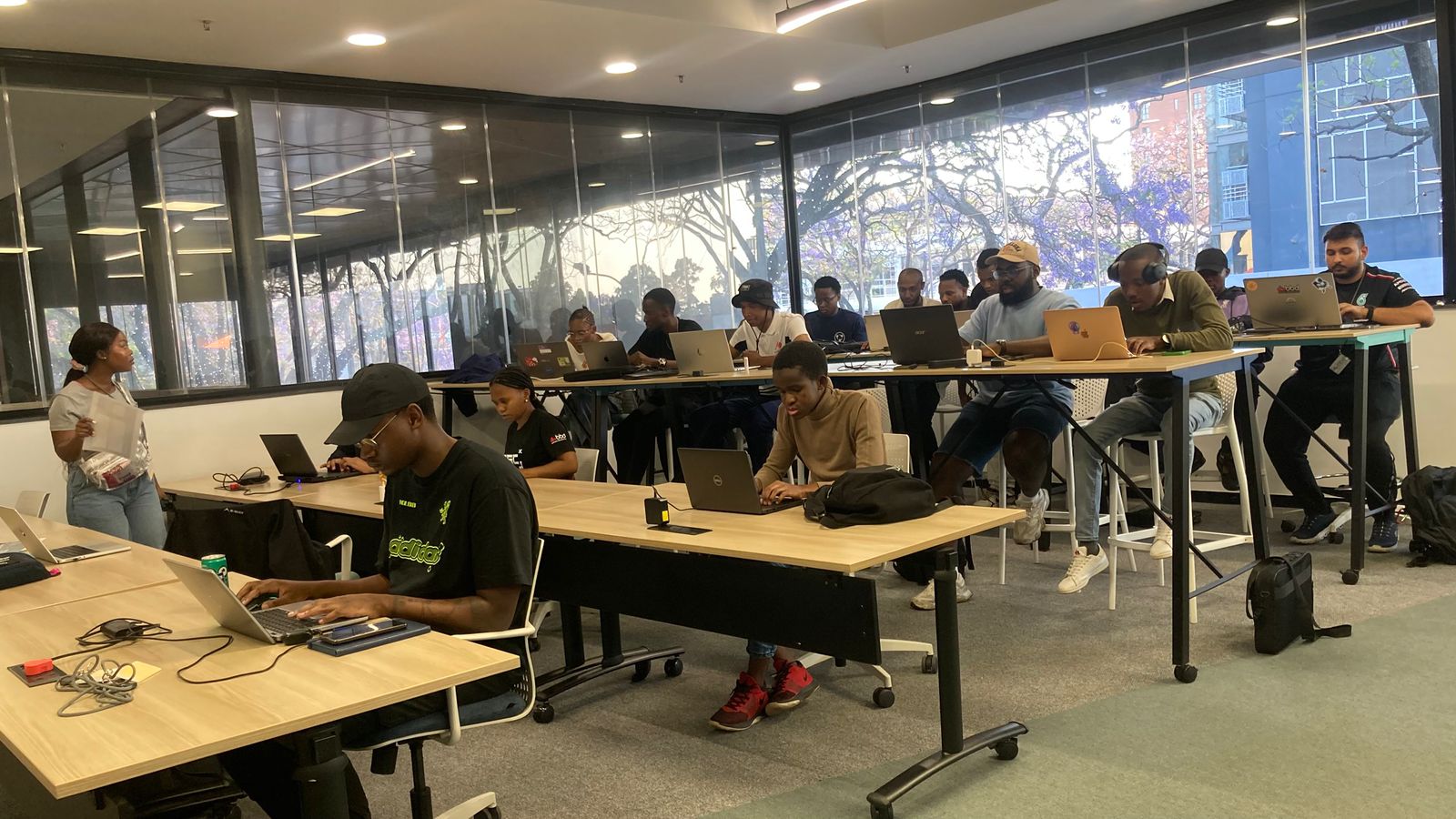
I’ve been inspired by all the activities that tech communities around the world have been hosting and participating in throughout the year. Here in the southern hemisphere we’re starting to dream about our upcoming summer breaks and closing out on some of the activities we’ve initiated this year. The tech community in South Africa is participating in Amazon Q Developer coding challenges that my colleagues and I are hosting throughout this month as a fun way to wind down activities for the year. The first one was hosted in Johannesburg last Friday with Durban and Cape Town coming up next.

Last week’s launches
These are the launches from last week that caught my attention:

Additional updates
I thought these projects, blog posts, and news items were also interesting:

Upcoming AWS events
Keep a look out and be sure to sign up for these upcoming events:

AWS re:Invent 2025 (December 1-5, 2025, Las Vegas) — AWS flagship annual conference offering collaborative innovation through peer-to-peer learning, expert-led discussions, and invaluable networking opportunities.

Join the AWS Builder Center to learn, build, and connect with builders in the AWS community. Browse here for upcoming in-person and virtual developer-focused events.

That’s all for this week. Check back next Monday for another Weekly Roundup!

Veliswa.

Monitor, analyze, and manage capacity usage from a single interface with Amazon EC2 Capacity Manager

This post was originally published on this site

Today, I’m happy to announce Amazon EC2 Capacity Manager, a centralized solution to monitor, analyze, and manage capacity usage across all accounts and AWS Regions from a single interface. This service aggregates capacity information with hourly refresh rates and provides prioritized optimization opportunities, streamlining capacity management workflows that previously required custom automation or manual data collection from multiple AWS services.

Organizations using Amazon Elastic Compute Cloud (Amazon EC2) at scale operate hundreds of instance types across multiple Availability Zones and accounts, using On-Demand Instances, Spot Instances, and Capacity Reservations. This complexity means customers currently access capacity data through various AWS services including the AWS Management Console, Cost and Usage Reports, Amazon CloudWatch, and EC2 describe APIs. This distributed approach can create operational overhead through manual data collection, context switching between tools, and the need for custom automation to aggregate information for capacity optimization analysis.

EC2 Capacity Manager helps you overcome these operational complexities by consolidating all capacity data into a unified dashboard. You can now view cross-account and cross-Region capacity metrics for On-Demand Instances, Spot Instances, and Capacity Reservations across all commercial AWS Regions from a single location, eliminating the need to build custom data collection tools or navigate between multiple AWS services.

This consolidated visibility can help you discover cost savings by highlighting underutilized Capacity Reservations, analyzing usage patterns across instance types, and providing insights into Spot Instance interruption patterns. By having access to comprehensive capacity data in one place, you can make more informed decisions about rightsizing your infrastructure and optimizing your EC2 spending.

Let me show you the capabilities of EC2 Capacity Manager in detail.

Getting started with EC2 Capacity Manager
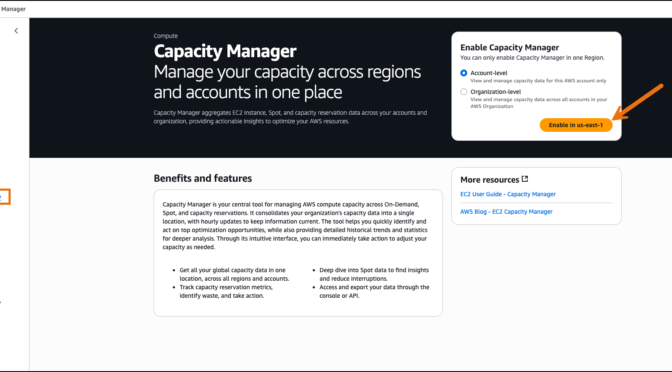
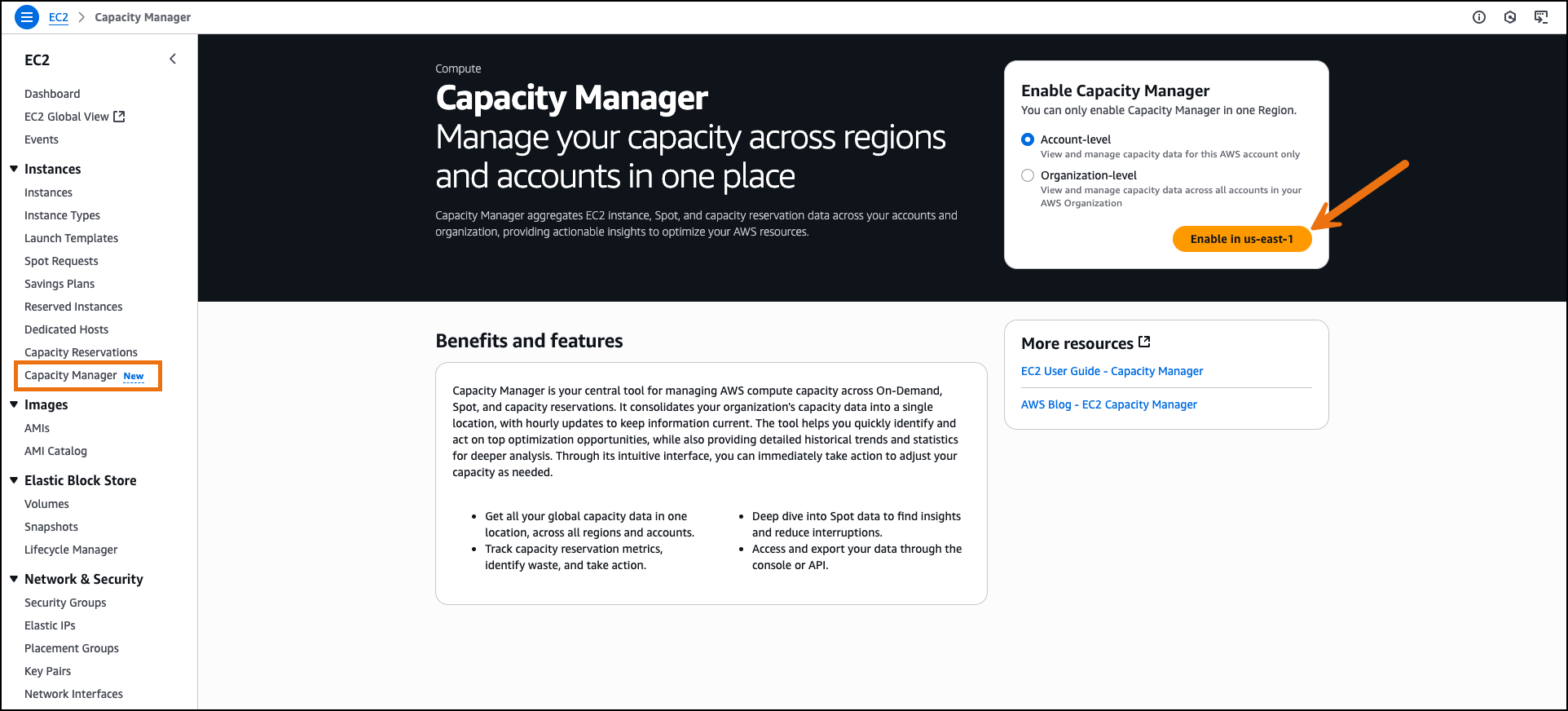
On the AWS Management Console, I navigate to Amazon EC2 and select Capacity Manager from the navigation pane. I enable EC2 Capacity Manager through the service settings. The service aggregates historical data from the previous 14 days during initial setup.
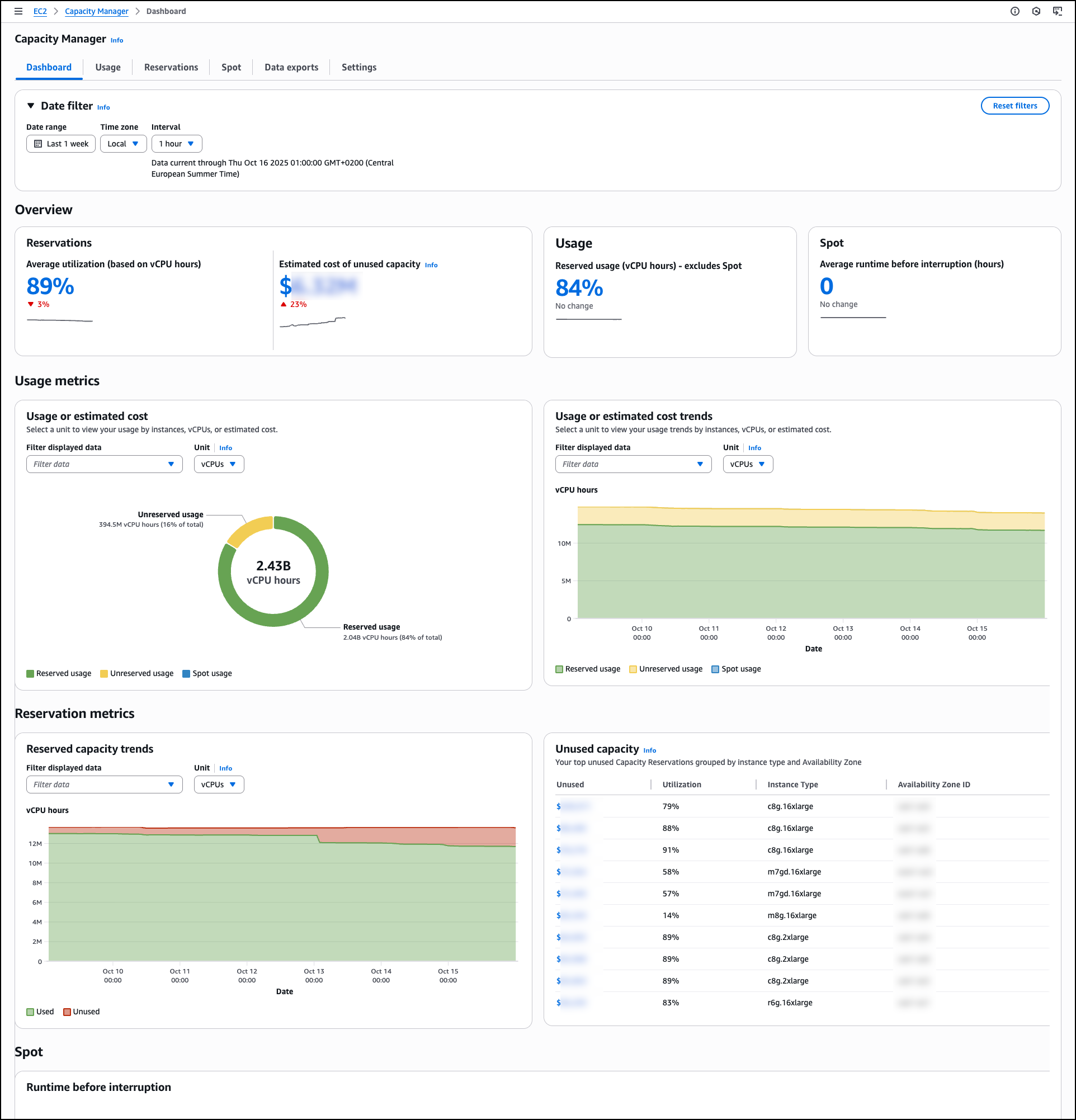
The main Dashboard displays capacity utilization across all instance types through a comprehensive overview section that presents key metrics at a glance. The capacity overview cards for Reservations, Usage, and Spot show trend indicators and percentage changes to help you identify capacity patterns quickly. You can apply filtering through the date filter controls, which include date range selection, time zone configuration, and interval settings.

You can select different units to analyze data by vCPUs, instance counts, or estimated costs to understand resource consumption patterns. Estimated costs are based on published On-Demand rates and do not include Savings Plans or other discounts. This pricing reference helps you compare the relative impact of underutilized capacity across different instance types—for example, 100 vCPU hours of unused p5 reservations represents a larger cost impact than 100 vCPU hours of unused t3 reservations.

The dashboard includes detailed Usage metrics with both total usage visualization and usage over time charts. The total usage section shows the breakdown between reserved usage, unreserved usage, and Spot usage. The usage over time chart provides visualization that tracks capacity trends over time, helping you identify usage patterns and peak demand periods.

Under Reservation metrics, Reserved capacity trends visualizes used and unused reserved capacity across the selected period, showing the proportion of reserved vCPU hours that remain unutilized compared with those actively consumed, helping you track reservation efficiency patterns and identify periods of consistent low utilization. This visibility can help you reduce costs by identifying underutilized reservations and helping you to make informed decisions about capacity adjustments.

The Unused capacity section lists underutilized capacity reservations by instance type and Availability Zone combinations, displaying specific utilization percentages and instance types across different Availability Zones. This prioritized list helps you identify potential savings with direct visibility into unused capacity costs.
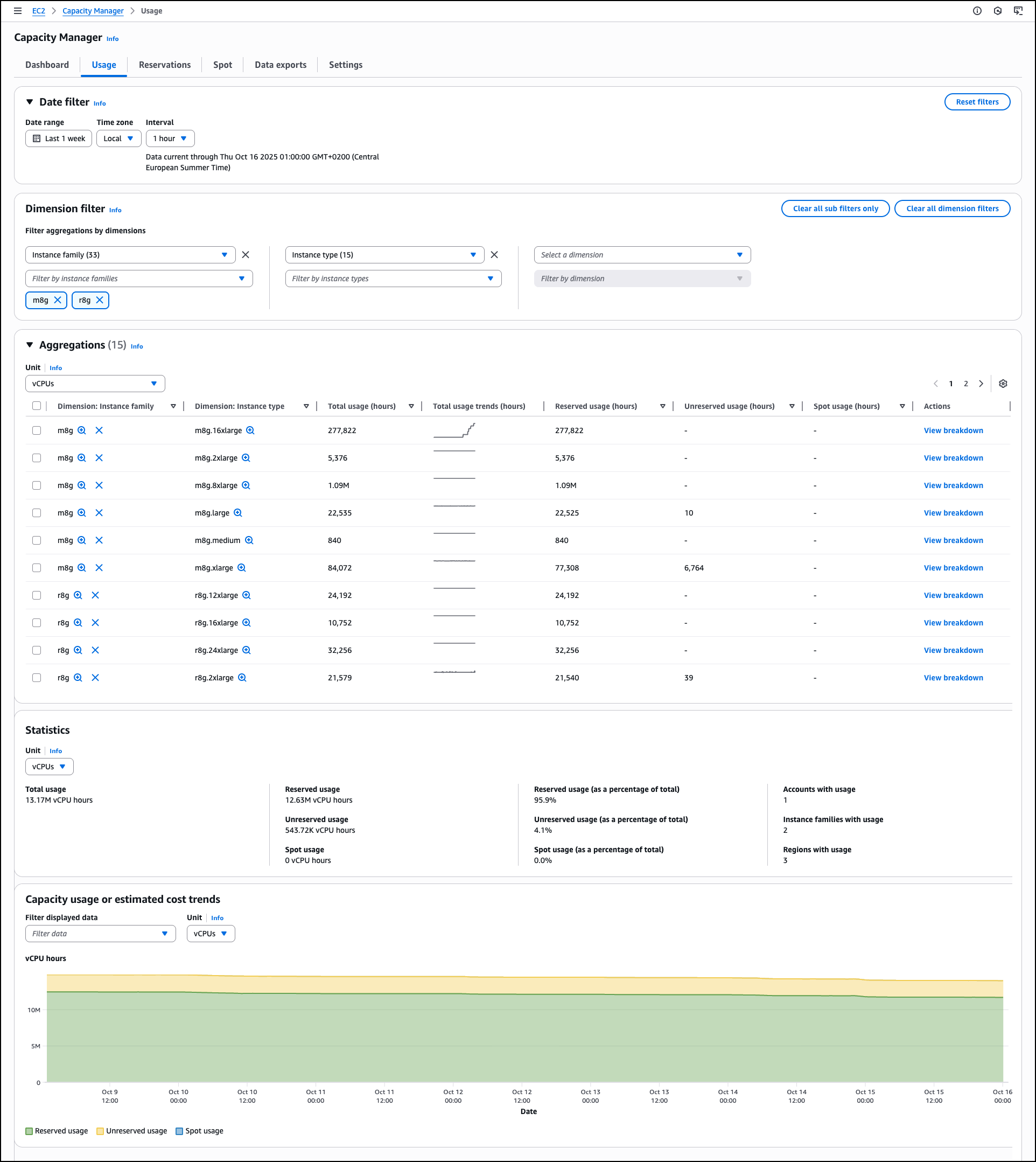
The Usage tab provides detailed historical trends and usage statistics across all AWS Regions for Spot Instances, On-Demand Instances, Capacity Reservations, Reserved Instances, and Savings Plans. Dedicated Hosts usage is not included. The Dimension filter helps you group by and filter capacity data by Account ID, Region, Instance Family, Availability Zone, and Instance Type, creating custom views that reveal usage patterns across your accounts and AWS Organizations. This helps you analyze specific configurations and compare performance across accounts or Regions.

The Aggregations section provides a comprehensive usage table across EC2 and Spot Instances. You can select different units to analyze data by vCPUs, instance counts, or estimated costs to understand resource consumption patterns. The table shows instance family breakdowns with total usage statistics, reserved usage hours, unreserved usage hours, and Spot usage data. Each row includes a View breakdown action for a detailed analysis.

The Capacity usage or estimated cost trends section visualizes usage trends, reserved usage, unreserved usage, and Spot usage. You can filter the displayed data and adjust the unit of measurement to view historical patterns. These filtering and analysis tools help you identify usage trends, compare costs across dimensions, and make informed decisions for capacity planning and optimization.
When you choose View breakdown from the Aggregations table, you access detailed Usage breakdown based on the dimension filters you selected. This breakdown view shows usage patterns for individual instance types within the selected family and Availability Zone combinations, helping you identify specific optimization opportunities.
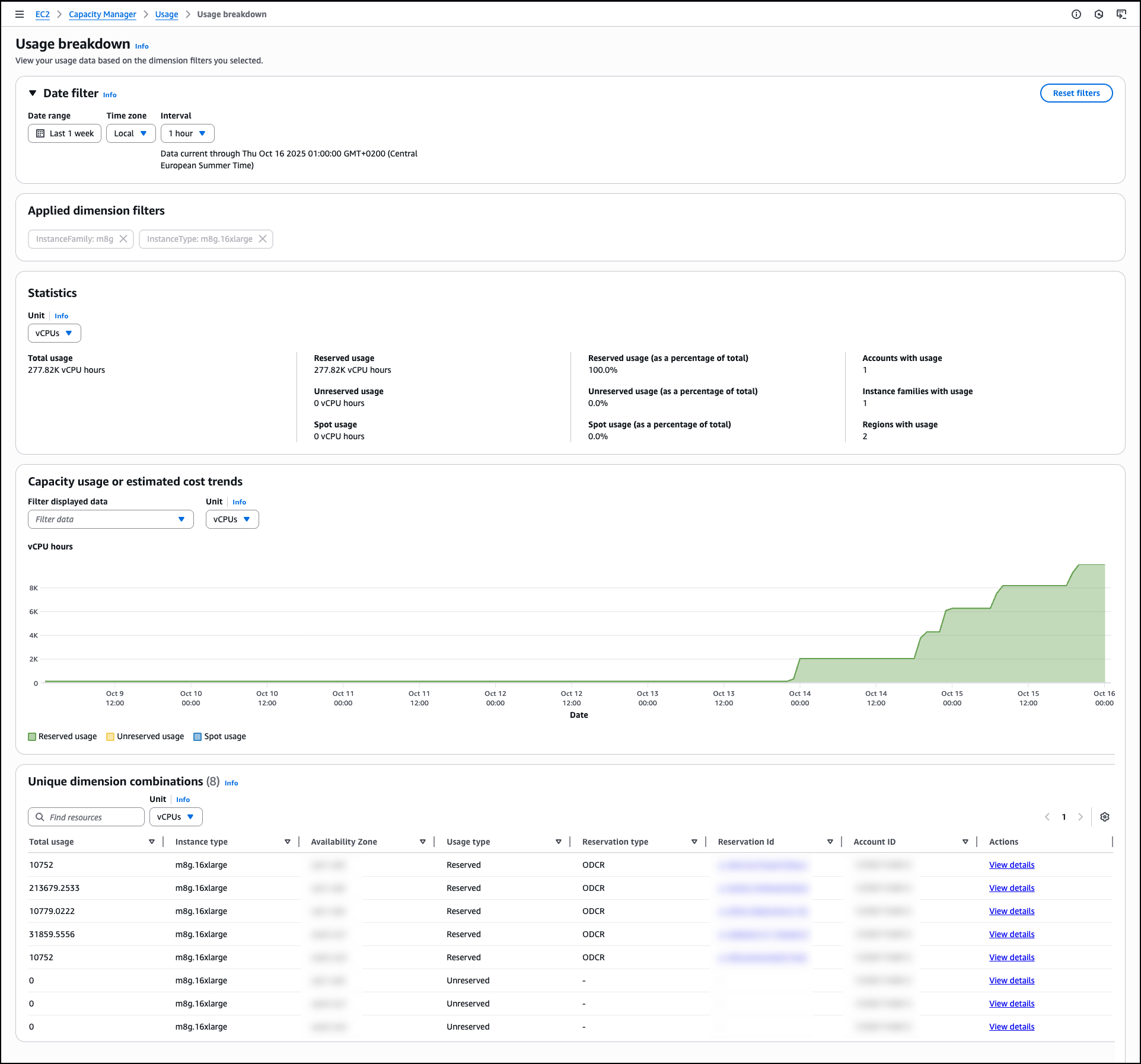
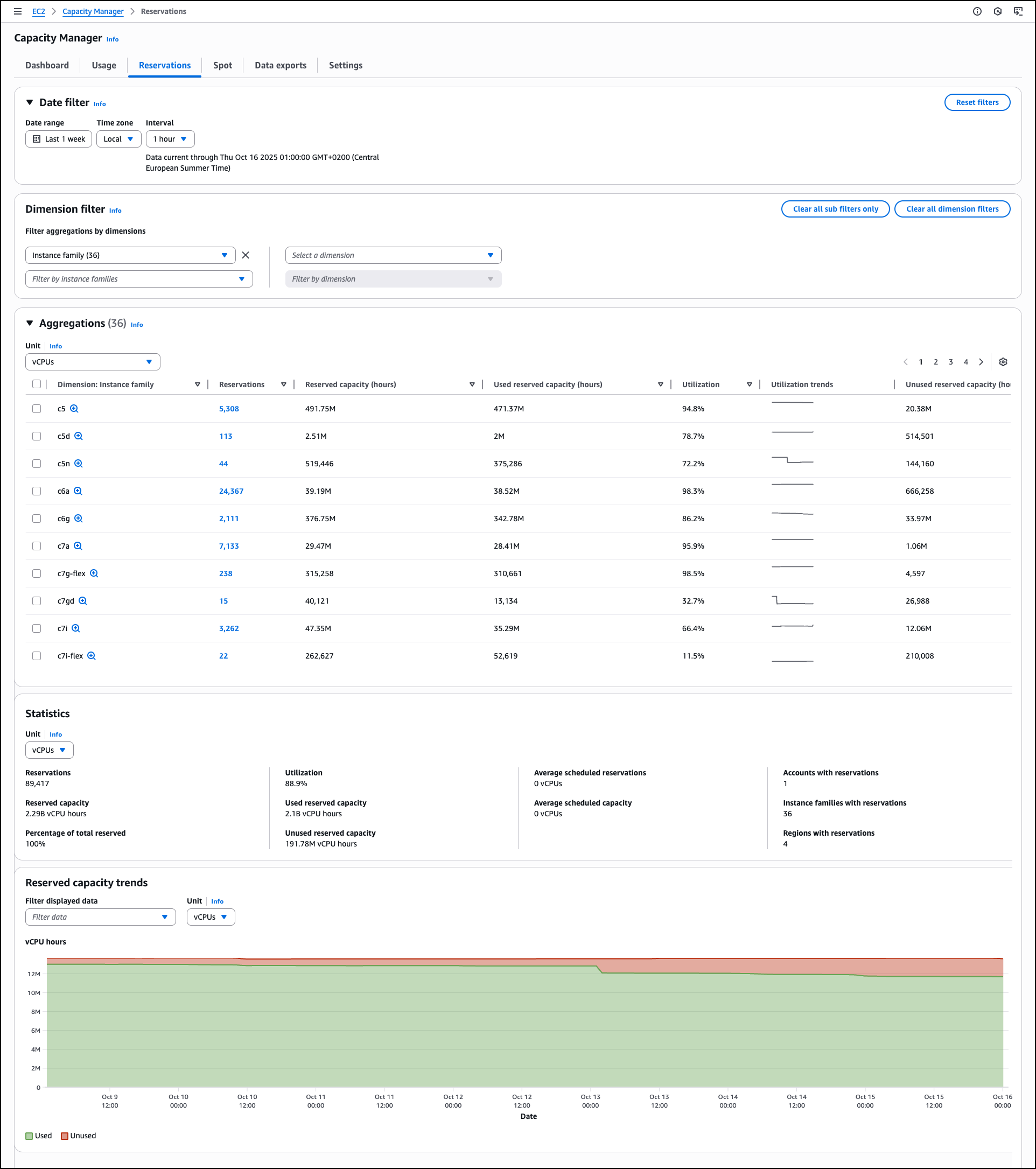
The Reservations tab displays capacity reservation utilization with automated analysis capabilities that generate prioritized lists of optimization opportunities. Similar to the Usage tab, you can apply dimension filters by Account ID, Region, Instance Family, Availability Zone, and Instance Type along with additional options related to the reservation details. On each of the tabs you can drill down to see data for individual line items. For reservations specifically, you can view specific reservations and access detailed information about On-Demand Capacity Reservations (ODCRs), including utilization history, configuration parameters, and current status. When the ODCR exists in the same account as Capacity Manager, you can modify reservation parameters directly from this interface, eliminating the need to navigate to separate EC2 console sections for reservation management.

The Statistics section provides summary metrics, including total reservations count, overall utilization percentage, reserved capacity totals, used and unused capacity volumes, average scheduled reservations, and counts of accounts, instance families, and Regions with reservations.

This consolidated view helps you understand reservation distribution and utilization patterns across your infrastructure. For example, you might discover that your development accounts consistently show 30% reservation utilization while production accounts exceed 95%, indicating an opportunity to redistribute or modify reservations. Similarly, you could identify that specific instance families in certain Regions have sustained low utilization rates, suggesting candidates for reservation adjustments or workload optimization. These insights help you make data-driven decisions about reservation purchases, modifications, or cancellations to better align your reserved capacity with actual usage patterns.
The Spot tab focuses on Spot Instance usage and displays the amount of time your Spot instances run before being interrupted. This analysis of Spot Instance usage patterns helps you identify optimization opportunities for Spot Instance workloads. You can use Spot placement score recommendations to improve workload flexibility.

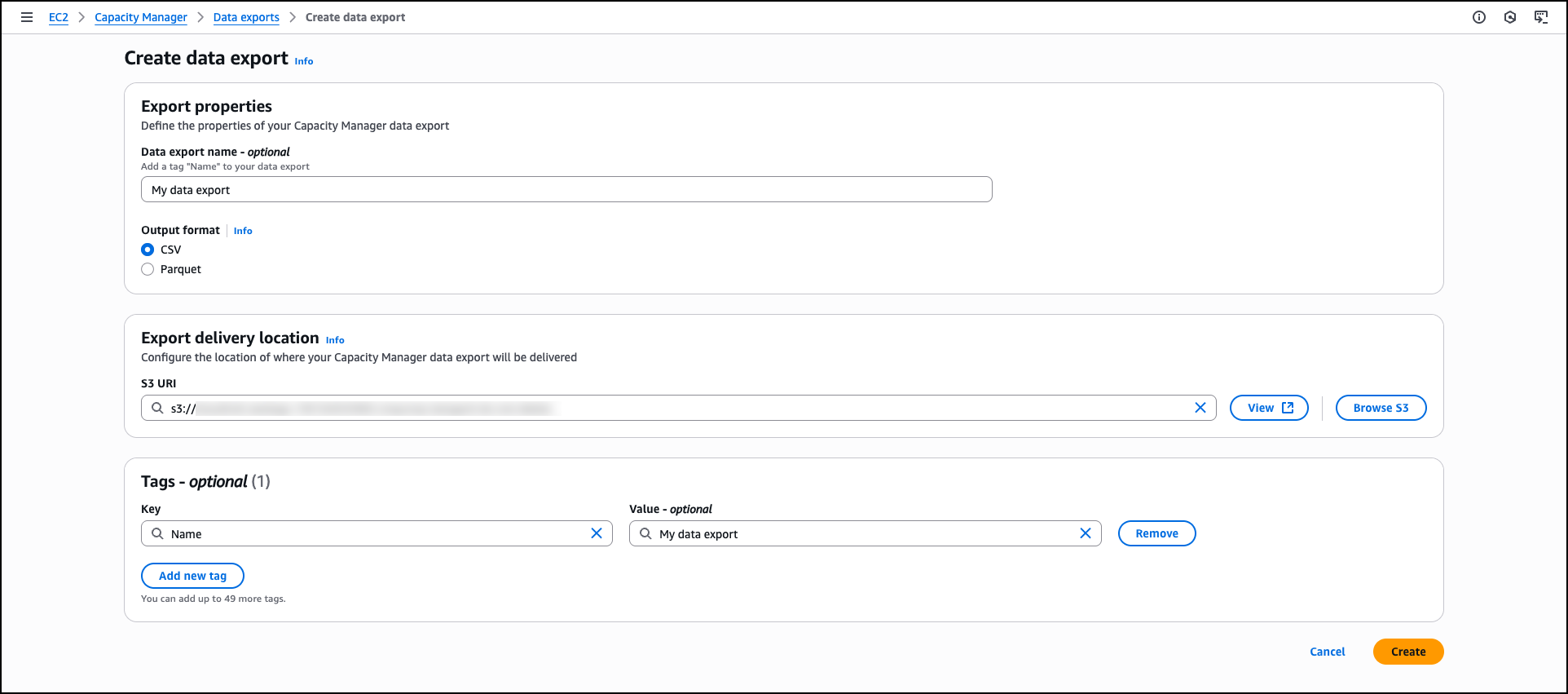
For organizations requiring data export capabilities, Capacity Manager includes data exports to Amazon Simple Storage Service (Amazon S3) buckets for capacity analysis. You can view and manage your data exports through the Data exports tab, which helps you create new exports, monitor delivery status, and configure export schedules to analyze capacity data outside the AWS Management Console.

Data exports extend your analytical capabilities by storing capacity data beyond the 90-day retention period available through the console and APIs. This extended retention enables long-term trend analysis and historical capacity planning. You can also integrate exported data with existing analytics workflows, business intelligence tools, or custom reporting systems to incorporate EC2 capacity metrics into broader infrastructure analysis and decision-making processes.
The Settings section provides configuration options for AWS Organizations integration, enabling centralized capacity management across multiple accounts. Organization administrators can enable enterprise-wide capacity visibility or delegate access to specific accounts while maintaining appropriate permissions and access controls.

Now available
EC2 Capacity Manager eliminates the operational overhead of collecting and analyzing capacity data from multiple sources. The service provides automated optimization opportunities, centralized multi-account visibility, and direct access to capacity management tools. You can reduce manual analysis time while improving capacity utilization and cost optimization across your EC2 infrastructure.

Amazon EC2 Capacity Manager is available at no additional cost. To begin using Amazon EC2 Capacity Manager, visit the Amazon EC2 console or access the service APIs. The service is available in all commercial AWS Regions.

To learn more, visit the EC2 Capacity Manager documentation.

— Esra

Clipboard Pictures Exfiltration in Python Infostealer, (Wed, Oct 15th)

This post was originally published on this site

For a while, clipboard content has been monitored by many infostealers. Purposes can be multiple, like simply searching and exfiltrating juicy data or on-the-fly modification like crypto-wallet swapping[1]. Note that the clipboard is a major risk when you don't disable clipboard sharing between your virtual machines and hosts. A malware running in a sandbox will access your (host) clipboard without problem!

Introducing Amazon EBS Volume Clones: Create instant copies of your EBS volumes

This post was originally published on this site


As someone that used to work at Sun Microsystems, where ZFS was invented, I’ve always loved working with storage systems that offer instant volume copies for my development and testing needs.

Today, I’m excited to share that AWS is bringing similar capabilities to Amazon Elastic Block Store (Amazon EBS) with the launch of Amazon EBS Volume Clones, a new capability that lets you create instant point-in-time copies of your EBS volumes within the same Availability Zone.

Many customers need to create copies of their production data to support development and testing activities in a separate nonproduction environment. Until now, this process required taking an EBS snapshot (stored in Amazon Simple Storage Service (Amazon S3)) and then creating a new volume from that snapshot. Although this approach works, the process creates operational overhead due to multiple steps.

With Amazon EBS Volume Clones, you can now create copies of your EBS volumes with a single API call or console click. The copied volumes are available within seconds and provide immediate access to your data with single-digit millisecond latency. This makes Volume Clones particularly useful for quickly setting up test environments with production data or creating temporary copies of databases for development purposes.

Let me show you how Volume Clones works
For this post, I created a small Amazon Elastic Compute Cloud (Amazon EC2) instance, with an attached volume. I created a file on the root file system with the command echo "Hello CopyVolumes" > hello.txt.

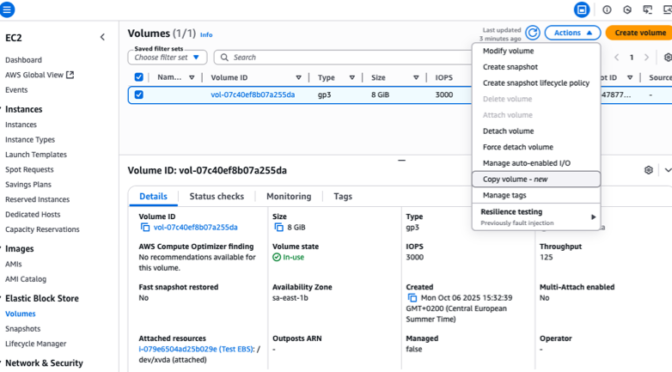
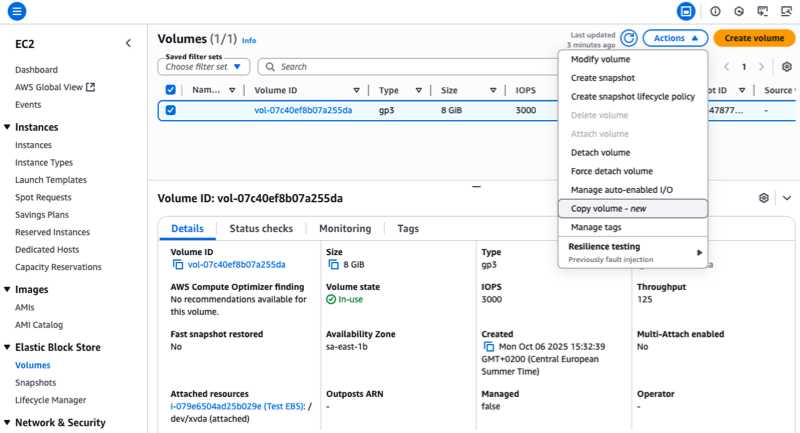
To initiate the copy, I open a browser on the AWS Management Console and I navigate to EC2, Elastic Block Store, Volumes. I select the volume I want to copy.

Note that, at the time of publication of this post, only encrypted volumes can be copied.

On the Actions menu, I choose the Copy Volume option.

Copy Volume - initiate

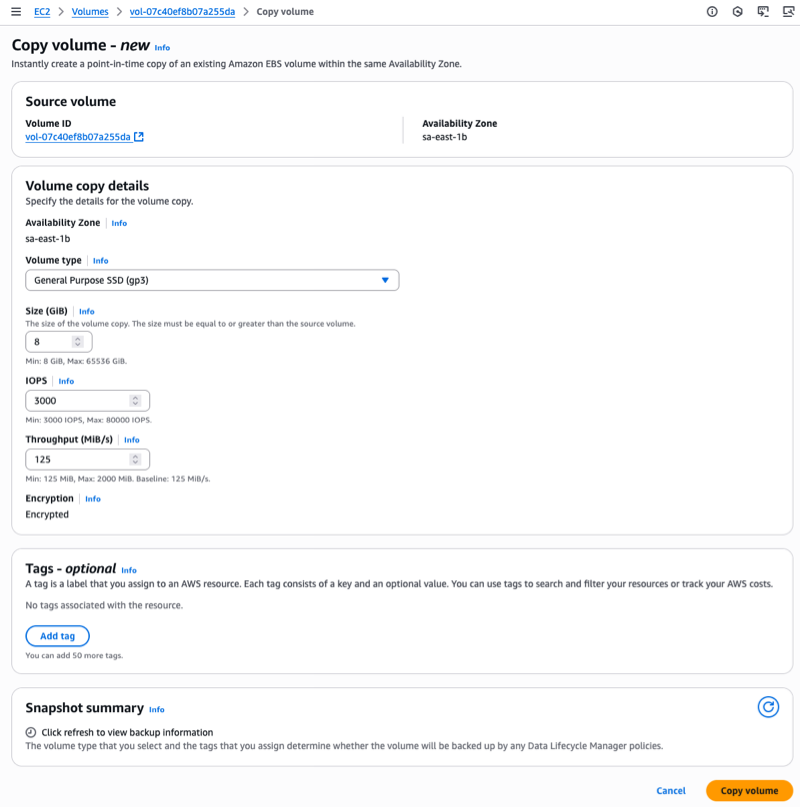
Next, I choose the details of the target volume. I can change the Volume type and adjust the Size, IOPS, and Throughput parameters. I choose Copy volume to start the Volume Clone operation.

Copy Volume - Parameters

The copied volume enters the Creating state and becomes available within seconds. I can then attach it to an EC2 instance and start using it immediately.

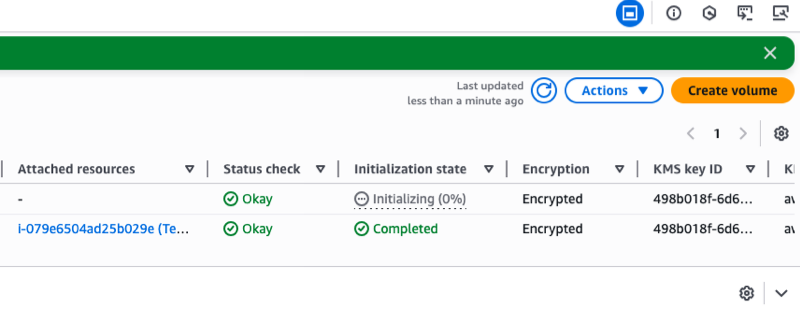
Data blocks are copied from the source volume and written to the volume copy in the background. The volume remains in the Initializing state until the process is complete. I can monitor its progress with the describe-volume-status API. The initializing operation doesn’t affect the performance of the source volume. I can continue using it normally during the copy process.

I love that the copied volume is available immediately. I don’t need to wait for its initialization to complete. During the initialization phase, my copied volume delivers performance based on the lowest of: a baseline of 3,000 IOPS and 125 MiB/s, the source volume’s provisioned performance, or the copied volume’s provisioned performance.

After initialization is completed, the copied volume becomes fully independent of the source volume and delivers its full provisioned performance.

Copy Volume - InitializingAlternatively, I can use the AWS Command Line Interface (AWS CLI) to initiate the copy:

aws ec2 copy-volumes                          
     --source-volume-id vol-1234567890abcdef0 
     --size 500                               
     --volume-type gp3

After the volume copy is created, I attach it to my EC2 instance and mount it. I can check the file I created at start is present.

First, I attach the volume from my laptop, using the attach-volume command:

aws ec2 attach-volume 
         --volume-id 'vol-09b700e3a23a9b4ad' 
         --instance-id 'i-079e6504ad25b029e'   
         --device '/dev/sdb'

Then, I connect to the instance, and I type these commands:

$ sudo lsblk -f
NAME          FSTYPE FSVER LABEL UUID                                 FSAVAIL FSUSE% MOUNTPOINTS
nvme0n1                                                                              
├─nvme0n1p1   xfs          /     49e26d9d-0a9d-4667-b93e-a23d1de8eacd    6.2G    22% /
└─nvme0n1p128 vfat   FAT16       3105-2F44                               8.6M    14% /boot/efi
nvme1n1                                                                              
├─nvme1n1p1   xfs          /     49e26d9d-0a9d-4667-b93e-a23d1de8eacd                
└─nvme1n1p128 vfat   FAT16       3105-2F44     

$ sudo mount -t xfs /dev/nvme1n1p1 /data

$ df -h
Filesystem        Size  Used Avail Use% Mounted on
devtmpfs          4.0M     0  4.0M   0% /dev
tmpfs             924M     0  924M   0% /dev/shm
tmpfs             370M  476K  369M   1% /run
/dev/nvme0n1p1    8.0G  1.8G  6.2G  22% /
tmpfs             924M     0  924M   0% /tmp
/dev/nvme0n1p128   10M  1.4M  8.7M  14% /boot/efi
tmpfs             185M     0  185M   0% /run/user/1000
/dev/nvme1n1p1    8.0G  1.8G  6.2G  22% /data

$ cat /data/home/ec2-user/hello.txt 
Hello CopyVolumes

Things to know
Volume Clones creates copies within the same Availability Zone as your source volume. You can create copies from encrypted volumes only, and the size of your copy must be equal to or greater than the source volume.

Volume Clones creates crash-consistent copies of your volumes, exactly like snapshots. For application consistency, you need to pause application I/O operations before creating the copy. For example, with PostgreSQL databases, you can use the pg_start_backup() and pg_stop_backup() functions to pause writes and create a consistent copy. At the operating system level on Linux with XFS, you can use the xfs_freeze command to temporarily suspend and resume access to the file system and ensure all cached updates are written to disk.

Although Volume Clones creates point-in-time copies, it complements rather than replaces EBS snapshots for backup purposes. EBS snapshots remain the recommended solution for data backup and protection against AZ-level and volume failures. Snapshots provide incremental backups to Amazon S3 with 11 nines of durability, compared to Volume Clones which maintains EBS volume durability (99.999% for io2, 99.9% for other volume types). Consider using Volume Clones specifically for test and development environment scenarios where you need instant access to volume copies.

Copied volumes exist independently of their source volumes and continue to incur standard EBS volume charges until you delete them. To manage costs effectively, implement governance rules to identify and remove copied volumes that are no longer needed for your development or testing activities.

Pricing and availability
Volume Clones supports all EBS volume types and works with volumes in the same AWS account and Availability Zone. This new capability is available in all AWS commercial Regions, selected Local Zones, and in the AWS GovCloud (US).

For pricing, you’re charged a one-time fee per GiB of data on the source volume at initiation and standard EBS pricing for the new volume.

I find Volume Clones particularly valuable for database workloads and continuous integration (CI) scenarios. For instance, you can quickly create a copy of your production database for testing new features or troubleshooting issues without impacting your production environment or waiting for data to hydrate from Amazon S3.

To get started with Amazon EBS Volume Clones, visit the Amazon EBS section on the console or check out the EBS documentation. I look forward to hearing how you use this capability to improve your development workflows.

— seb

AWS Transfer Family SFTP connectors now support VPC-based connectivity

This post was originally published on this site

Many organizations rely on the Secure File Transfer Protocol (SFTP) as the industry standard for exchanging critical business data. Traditionally, securely connecting to private SFTP servers required custom infrastructure, manual scripting, or exposing endpoints to the public internet.

Today, AWS Transfer Family SFTP connectors now support connectivity to remote SFTP servers through Amazon Virtual Private Cloud (Amazon VPC) environments. You can transfer files between Amazon Simple Storage Service (Amazon S3) and private or public SFTP servers while applying the security controls and network configurations already defined in your VPC. This capability helps you integrate data sources across on-premises environments, partner-hosted private servers, or internet-facing endpoints, with the operational simplicity of a fully managed Amazon Web Services (AWS) service.

New capabilities with SFTP connectors
The following are the key enhancements:

  • Connect to private SFTP servers – SFTP connectors can now reach endpoints that are only accessible within your AWS VPC connection. These include servers hosted in your VPC or a shared VPC, on-premises systems connected over AWS Direct Connect, and partner-hosted servers connected through VPN tunnels.
  • Security and compliance – All file transfers are routed through the security controls already applied in your VPC, such as AWS Network Firewall or centralized ingress and egress inspection. Private SFTP servers remain private and don’t need to be exposed to the internet. You can also present static Elastic IP or bring your own IP (BYOIP) addresses to meet partner allowlist requirements.
  • Performance and simplicity – By using your own network resources such as NAT gateways, AWS Direct Connect or VPN connections, connectors can take advantage of higher bandwidth capacity for large-scale transfers. You can configure connectors in minutes through the AWS Management Console,  AWS Command Line Interface (AWS CLI), or AWS SDKs without building custom scripts or third-party tools.

How VPC- based SFTP connections work
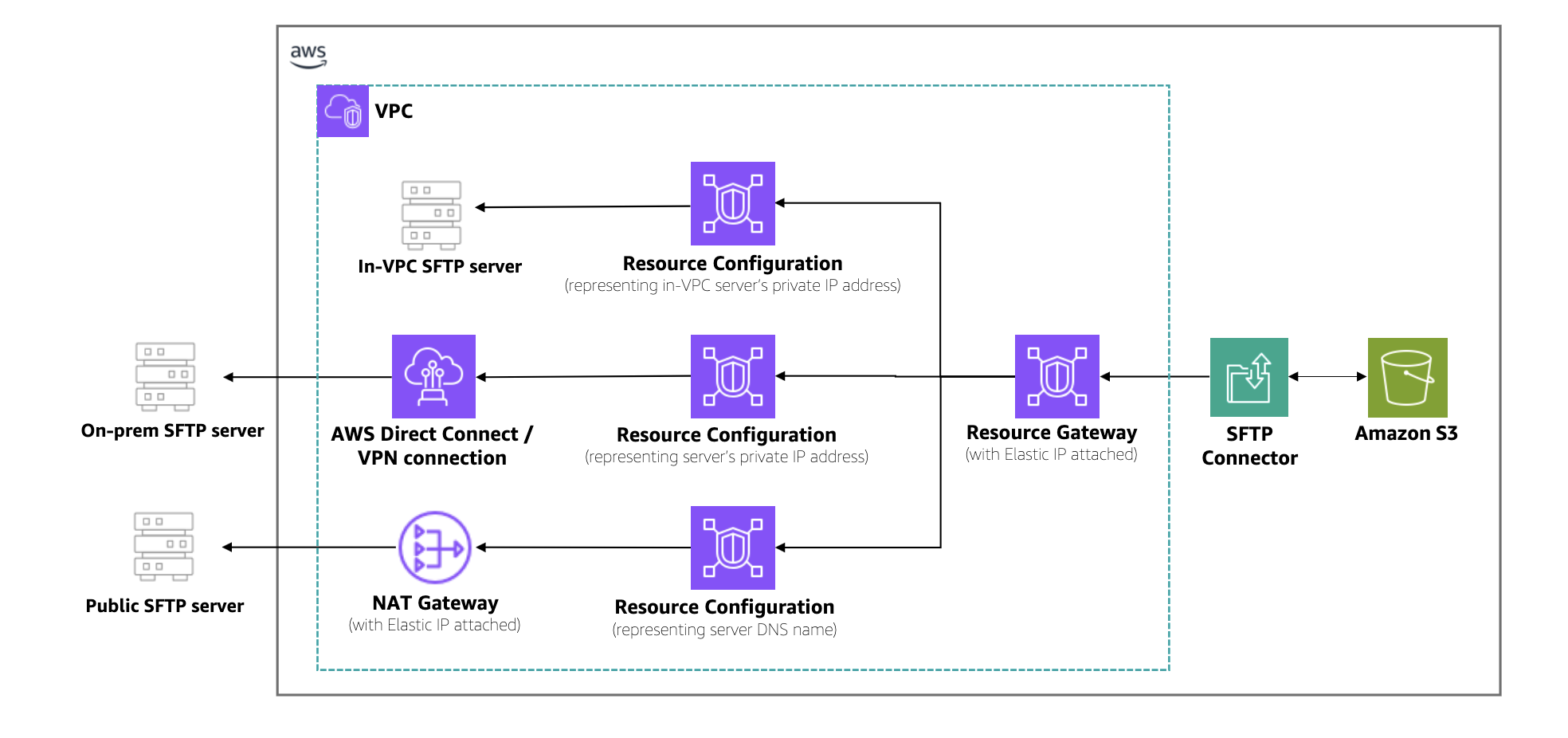
SFTP connectors use Amazon VPC Lattice resources to establish secure connectivity through your VPC. Key constructs include a resource configuration and a resource gateway. The resource configuration represents the target SFTP server, which you specify using a private IP address or public DNS name. The resource gateway provides SFTP connector access to these configurations, enabling file transfers to flow through your VPC and its security controls.

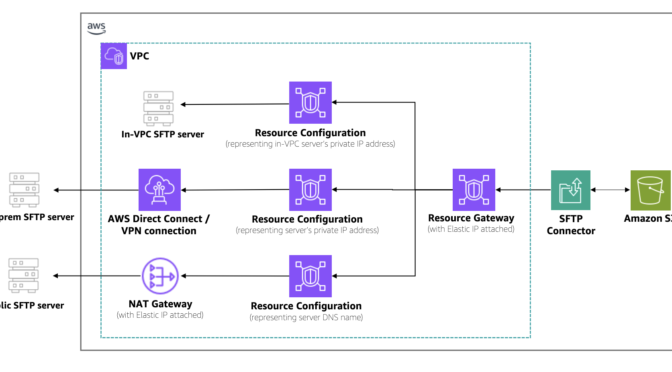
The following architecture diagram illustrates how traffic flows between Amazon S3 and remote SFTP servers. As shown in the architecture, traffic flows from Amazon S3 through the SFTP connector into your VPC. A resource gateway is the entry point that handles inbound connections from the connector to your VPC resources. Outbound traffic is routed through your configured egress path, using Amazon VPC NAT gateways with Elastic IPs for public servers or AWS Direct Connect and VPN connections for private servers. You can use existing IP addresses from your VPC CIDR range, simplifying partner server allowlists. Centralized firewalls in the VPC enforce security policies, and customer-owned NAT gateways provide higher bandwidth for large-scale transfers.

When to use this feature
With this capability, developers and IT administrators can simplify workflows while meeting security and compliance requirements across a range of scenarios:

  • Hybrid environments – Transfer files between Amazon S3 and on-premises SFTP servers using AWS Direct Connect or AWS Site-to-Site VPN, without exposing endpoints to the internet.
  • Partner integrations – Connect with business partners’ SFTP servers that are only accessible through private VPN tunnels or shared VPCs. This avoids building custom scripts or managing third-party tools, reducing operational complexity.
  • Regulated industries – Route file transfers through centralized firewalls and inspection points in VPCs to comply with financial services, government, or healthcare security requirements.
  • High-throughput transfers – Use your own network configurations such as NAT gateways, AWS Direct Connect, or VPN connections with Elastic IP or BYOIP to handle large-scale, high-bandwidth transfers while retaining IP addresses already on partner allowlists.
  • Unified file transfer solution – Standardize on Transfer Family for both internal and external SFTP connectivity, reducing fragmentation across file transfer tools.

Start building with SFTP connectors
To begin transferring files with SFTP connectors through my VPC environment, I follow these steps:

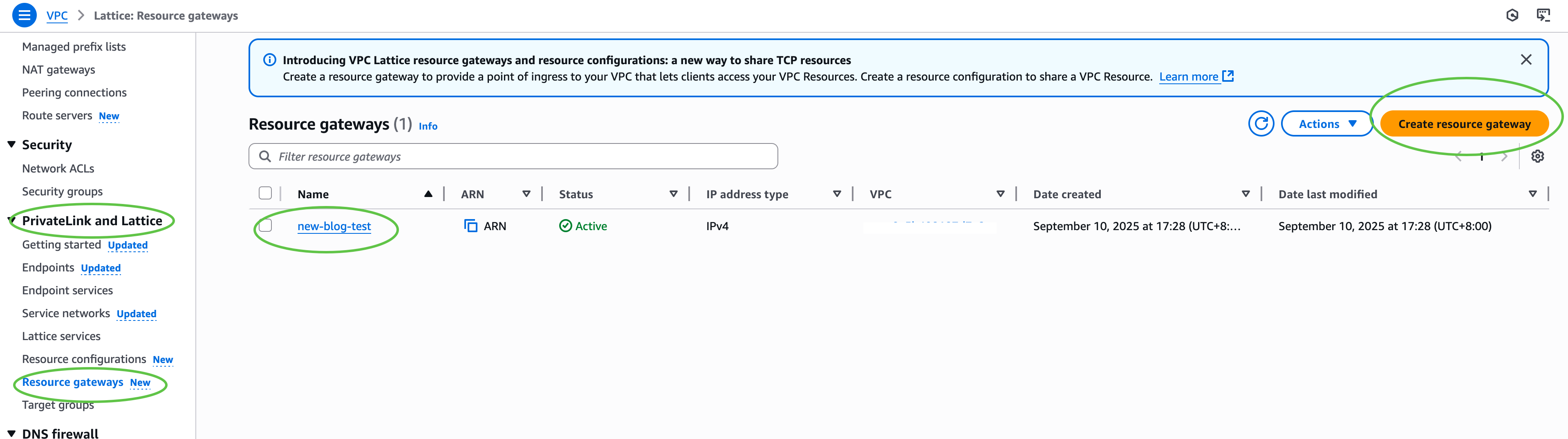
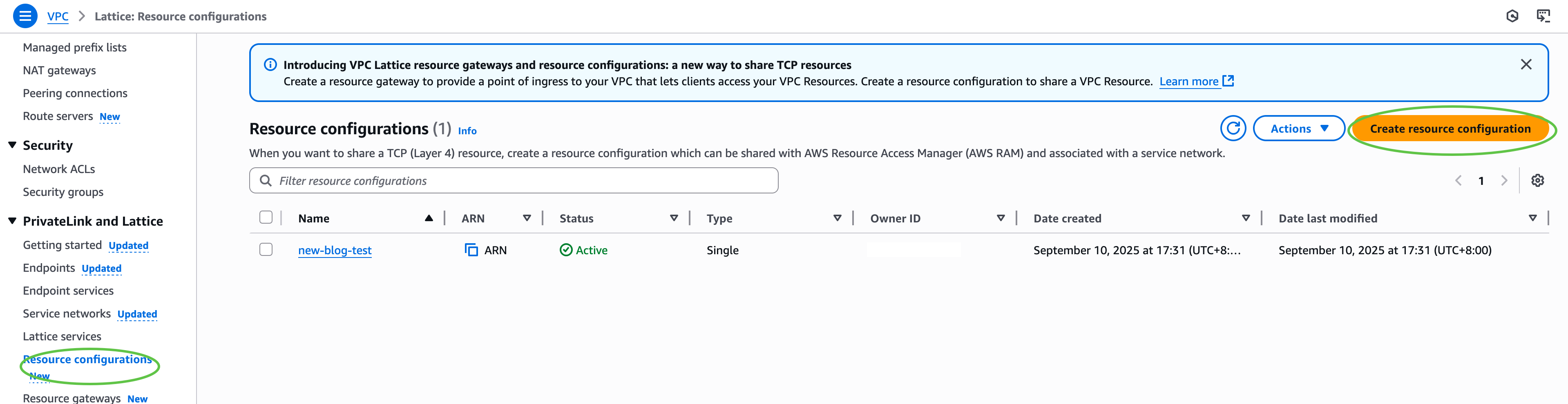
First, I configure my VPC Lattice resources. In the Amazon VPC console, under PrivateLink and Lattice in the navigation pane, I choose Resource gateways, choose Create resource gateway to create one to act as the ingress point into my VPC. Next, under PrivateLink and Lattice in the navigation pane, I choose Resource configuration and choose Create resource configuration to create a resource configuration for my target SFTP server. Specify the private IP address or public DNS name, and the port (typically 22).

Then, I configure AWS Identity and Access Management (IAM) permissions. I ensure that the IAM role used for connector creation has transfer:* permissions, and VPC Lattice permissions (vpc-lattice:CreateServiceNetworkResourceAssociation, vpc-lattice:GetResourceConfiguration, vpc-lattice:AssociateViaAWSService). I update the trust policy on the IAM role to specify transfer.amazonaws.com as a trusted principal. This enables AWS Transfer Family to assume the role when creating and managing my SFTP connectors.

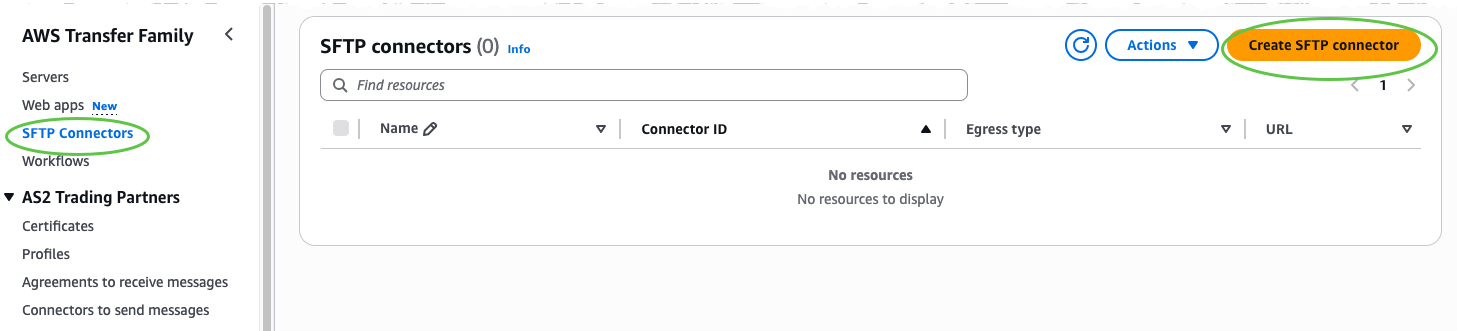
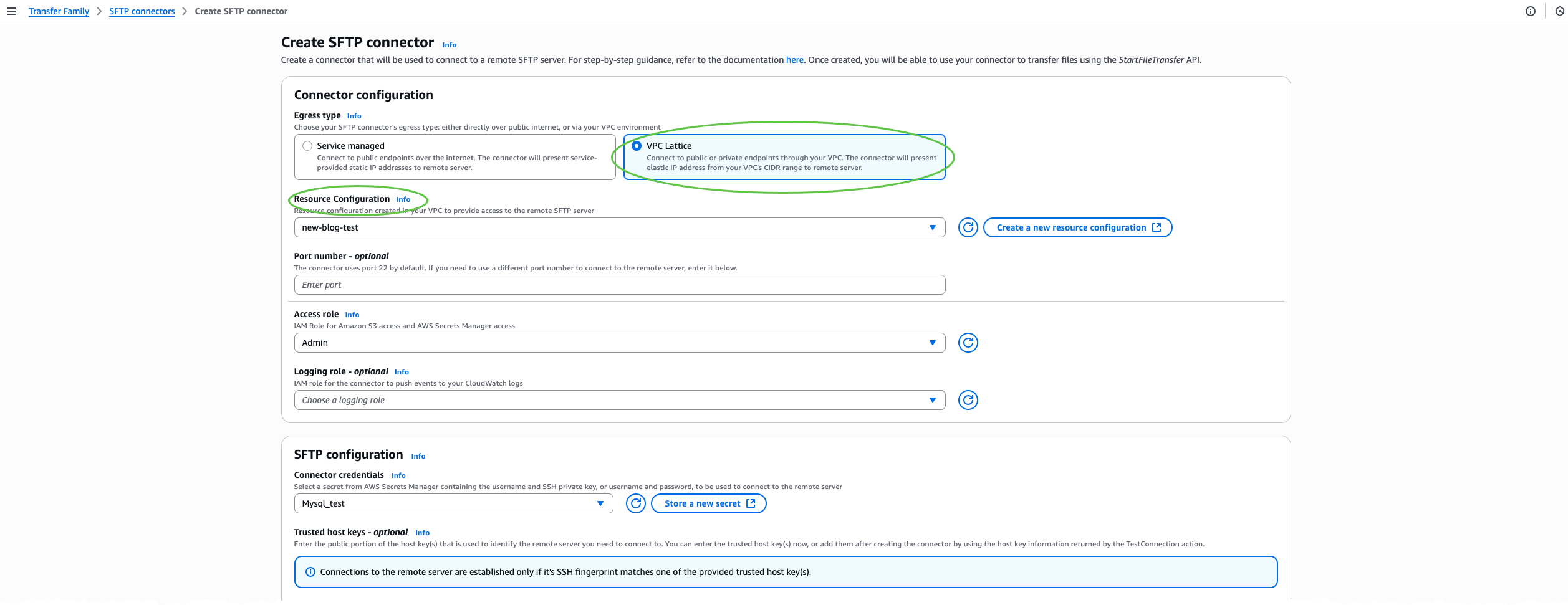
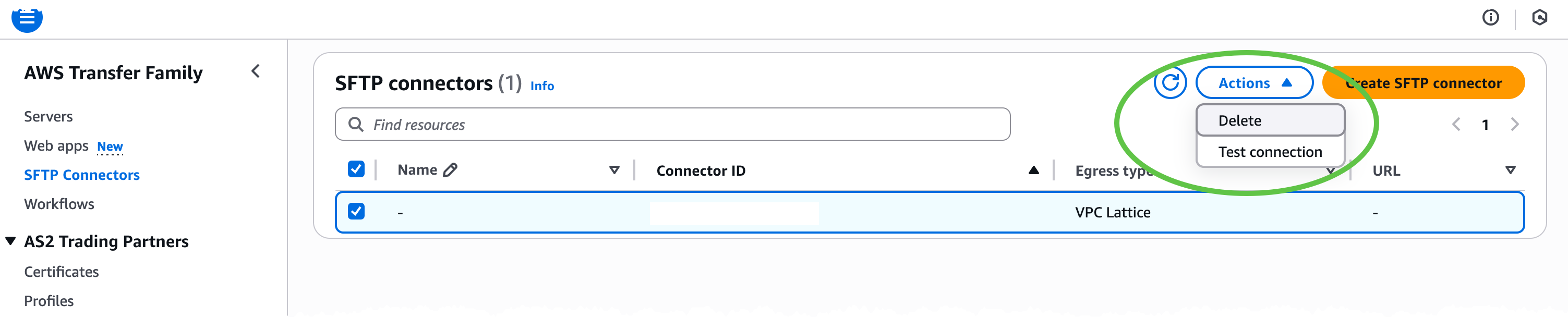
After that, I create an SFTP connector through the AWS Transfer Family console. I choose SFTP Connectors and then choose Create SFTP connector. In the Connector configuration section, I select VPC Lattice as the egress type, then provide the Amazon Resource Name (ARN) of the Resource Configuration, Access role, and Connector credentials. Optionally, include a trusted host key for enhanced security, or override the default port if my SFTP server uses a nonstandard port.

Next, I test the connection. On the Actions menu, I choose Test connection to confirm that the connector can reach the target SFTP server.

Finally, after the connector status is ACTIVE, I can begin file operations with my remote SFTP server programmatically by calling Transfer Family APIs such as StartDirectoryListing, StartFileTransfer, StartRemoteDelete, or StartRemoteMove. All traffic is routed through my VPC using my configured resources such as NAT gateways, AWS Direct Connect, or VPN connections together with my IP addresses and security controls.

For the complete set of options and advanced workflows, refer to the AWS Transfer Family documentation.

Now available

SFTP connectors with VPC-based connectivity are now available in 21 AWS Regions. Check the AWS Services by Region for the latest supported AWS Regions. You can now securely connect AWS Transfer Family SFTP connectors to private, on-premises, or internet-facing servers using your own VPC resources such as NAT gateways, Elastic IPs, and network firewalls.

Betty

Heads Up: Scans for ESAFENET CDG V5 , (Mon, Oct 13th)

This post was originally published on this site

In January, a possible XSS vulnerability was found in the electronic document security management system ESAFENET CDG. This was the latest (as far as I can tell) in a long list of vulnerabilities in the product. Prior vulnerabilities included SQL injection issues and weaknesses in the encryption used to safeguard documents. In other words: A typical "secure" document management system. The product appears to be targeting the Chinese market, and with a website all in Chinese, I doubt it is used much, if at all, outside China.

AWS Weekly Roundup: Amazon Quick Suite, Amazon EC2, Amazon EKS, and more (October 13, 2025)

This post was originally published on this site

This week I was at the inaugural AWS AI in Practice meetup from the AWS User Group UK. AI-assisted software development and agents were the focus of the evening! Next week I’ll be in Italy for Codemotion (Milan) and an AWS User Group meetup (Rome). I am also excited to try the new Amazon Quick Suite that brings AI-powered research, business intelligence, and automation capabilities into a single workspace.

Last week’s launches
Here are the launches that got my attention this week:

Additional updates
Here are some additional projects, blog posts, and news items that I found interesting:

Upcoming AWS events
Check your calendars so that you can sign up for these upcoming events:

  • AWS AI Agent Global Hackathon – This is your chance to dive deep into our powerful generative AI stack and create something truly awesome. From September 8th to October 20th, you have the opportunity to create AI agents using AWS suite of AI services, competing for over $45,000 in prizes and exclusive go-to-market opportunities.
  • AWS Gen AI Lofts – You can learn AWS AI products and services with exclusive sessions, meet industry-leading experts, and have valuable networking opportunities with investors and peers. Register in your nearest city: Paris (October 7–21), London (Oct 13–21), and Tel Aviv (November 11–19).
  • AWS Community Days – Join community-led conferences that feature technical discussions, workshops, and hands-on labs led by expert AWS users and industry leaders from around the world: Budapest (October 16).

Join the AWS Builder Center to learn, build, and connect with builders in the AWS community. Browse here upcoming in-person events, developer-focused events, and events for startups.

That’s all for this week. Check back next Monday for another Weekly Roundup!

Danilo